Writing is the chore that stalls everything else: the same abaya described twice in two
languages, a collection that needs naming at midnight, a campaign that misses its window because the
copy was not ready. Connect an AI provider and drafting buttons appear inside the editors you already
use, each proposing a draft that a person always reviews and accepts. The AI never publishes, sends,
or changes anything on its own.
The problem: every piece you list is written twice, once in English
and once in Arabic, and the second pass is pure retyping that either eats your evening or waits on a
translator.
Turns the content you have written in one language into draft translations for every
other language your store offers, so adding a language becomes a review pass, not a rewrite. The
drafts land in the translation fields for you to read over and tidy.
In practice
Say you have just written a warm English description for a new made-to-order evening kaftan with hand-beaded sleeves, and now every word needs to appear in Arabic too so your Qatar shoppers read it in their own language, right to left.
How Angelite handles it: with the English text in place, you click Translate with AI on the translation toolbar. The Arabic tab fills with a draft translation in seconds. You read it over, adjust any phrasing that sounds off for the fabric and embroidery detail, then save, and the kaftan now reads naturally in both languages.
How to use it
Open the item you are editing (for example a product) and fill in its text in one language.
Click the Translate with AI button on the translation toolbar.
The other language tabs fill in with draft translations.
Review each translation, adjust anything you want, and save.
Where: inside the editor (for example a product), on the translation toolbar where the AI drafting button appears.
Good to know: the translation is a starting point. Nothing goes live
until you review it and save the item yourself.
Content
AdminOptional · AI Assistant
The problem: the piece is steamed, photographed and ready, and the
description box is still empty; the blank field is the only reason it is not on the shop yet.
Drafts copy for you from a short brief, such as a product description, a page intro, or
a few words for a marketing field. You describe what you want and the AI proposes wording you can
keep, trim, or rewrite, so a backlog of empty description fields clears in minutes instead of
stalling for days.
In practice
Imagine you have photographed a new ready-to-wear black crepe abaya but the description box is empty, and you would rather not stare at a blank field trying to find the right words for the listing.
How Angelite handles it: in the product editor you click Draft with AI and type a one-line brief, for example "flowing black crepe abaya, minimal embroidery, everyday elegance, friendly tone." The description field fills with suggested copy. You trim a sentence, add the fabric detail you care about, and save, with a polished listing ready in a minute.
How to use it
Open the editor for the item whose text you want to write.
Click Draft with AI and type a short brief describing the tone and key points.
The suggested copy fills into the matching fields.
Edit anything you like, then save the item.
Where: inside content editors such as the product editor.
Product
AdminOptional · AI Assistant
The problem: a shipment of a dozen pieces means a dozen names,
descriptions, categories and tags, and at one listing an evening the new stock trickles online over a
week.
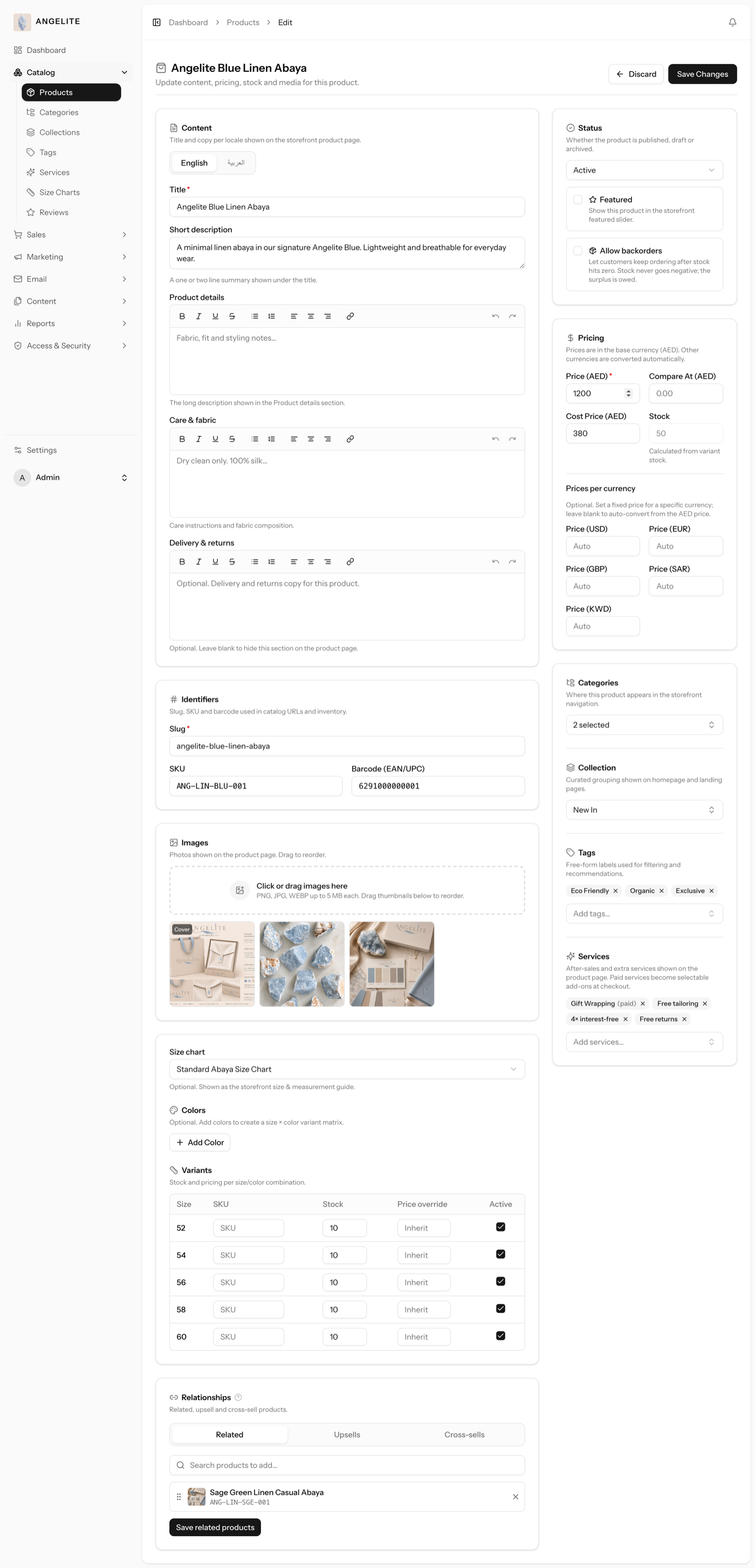
Fills in a whole new product form from a short brief, including the name, description,
and sensible picks for category, collection and tags drawn from your real options. It is a fast head
start that you finish and check before going live, so a big shipment gets onto the store the same
day.
In practice
Say a new shipment of ready-to-wear Ramadan-collection abayas has just arrived and you have a dozen pieces to list before the weekend, each needing a name, a description, and the right category and tags.
How Angelite handles it: starting a new product, you click Generate with AI and describe the piece in a sentence, for example "nida-fabric abaya with crystal-trim sleeves, Ramadan collection, sizes S-XXL." The whole form fills in with a name, a description, and category, collection and tag picks chosen from the ones your store actually uses. You set the price in riyals and add the photos, check each field, then save.
How to use it
Start a new product in Catalog → Products.
Click Generate with AI and describe the product in a sentence or two.
The form fills in with a suggested name, description and category choices.
Review every field, set the price and images, then save the product when you are happy.
Where: the new-product screen, with the Generate button in the header actions.
Good to know: any category or collection the AI picks is matched to one
that actually exists in your store, so the draft never points at something that is not there.
Taxonomy
AdminOptional · AI Assistant
The problem: it is midnight, the wedding-season stock is steamed and
photographed, and the collection still has no name; the naming and the blurb are the chores that hold
up the launch.
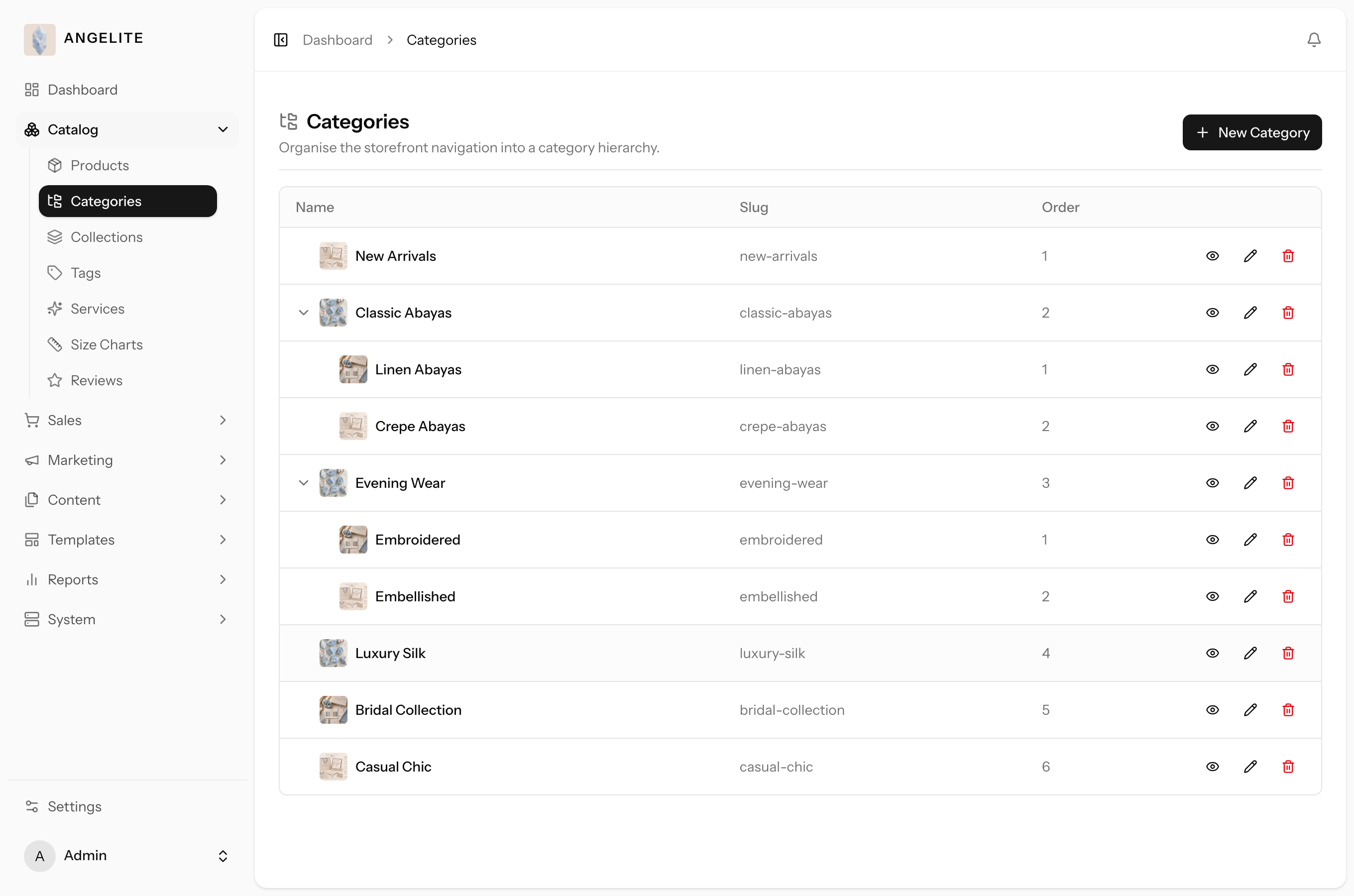
Suggests names and short descriptions for a new category or collection from a brief, so
you can name a department or a themed grouping without staring at a blank box, and a seasonal range
goes live the moment the stock is ready.
In practice
Imagine you want to group all your wedding-season pieces, the beaded kaftans, the embroidered jalabiyas, the trousseau sets, into one themed collection for the storefront, but you are not sure what to call it or how to describe it.
How Angelite handles it: in Collections you start a new one and click Generate with AI, describing it as "wedding-season trousseau pieces, elegant made-to-order sets for the bride." A suggested name, a short description and a sensible place in the tree appear. You tweak the wording to match your brand voice and save the collection.
How to use it
Open Catalog → Categories or Collections and start a new one.
Click Generate with AI and describe what it should cover.
A suggested name, description and place in the tree appear.
Adjust anything you want, then save.
Where: the create panel in Catalog → Categories (and the equivalent on Collections).
SEO
AdminOptional · AI Assistant
The problem: the little title and summary that show when someone
finds you on Google or shares your link are fiddly to write for every page, so they go out blank and
your shop appears as a bare address with a chopped-off first sentence.
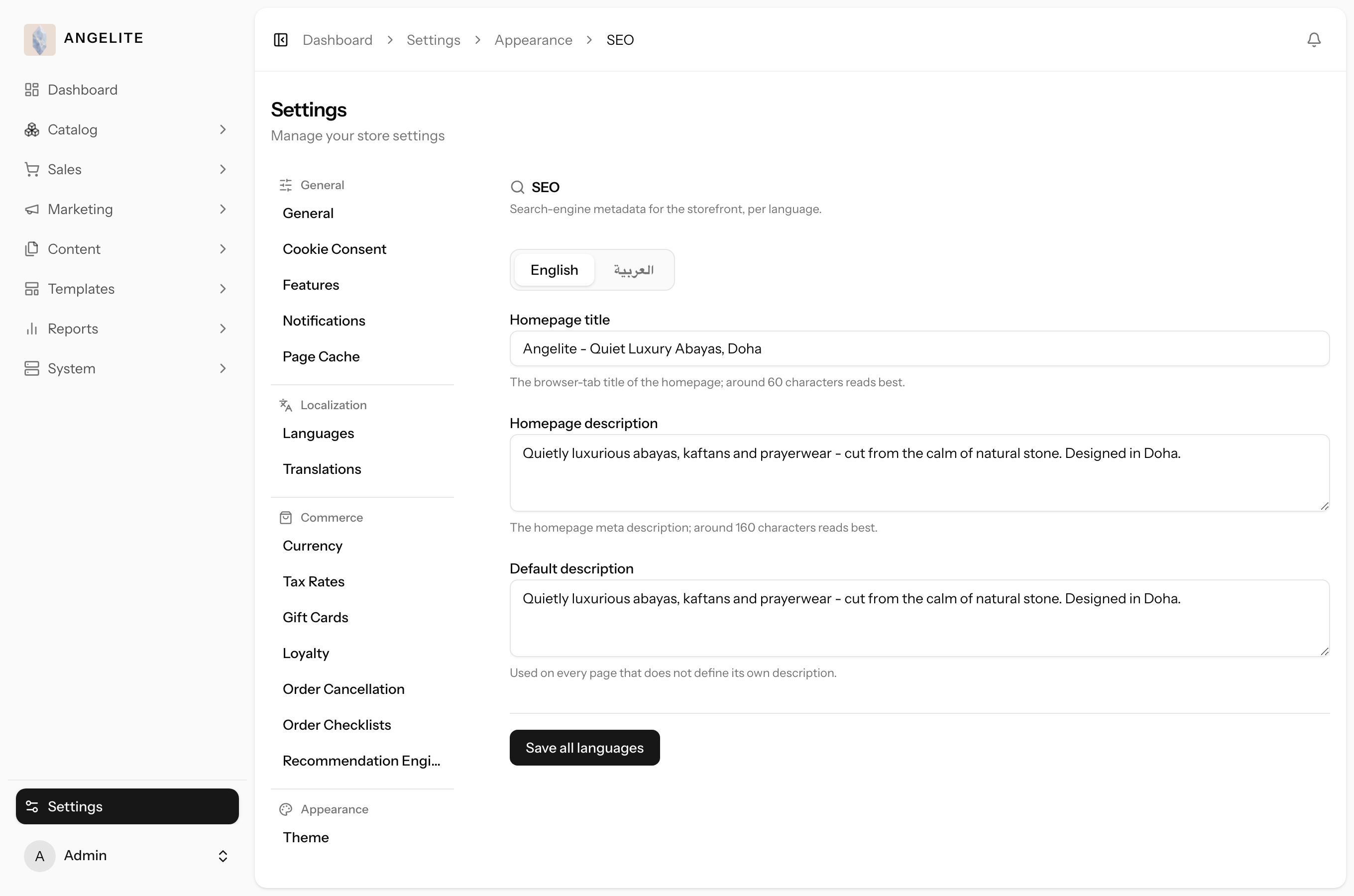
Drafts the page title and the short summary that show when someone finds you on Google
or shares your link, written to fit the small space those previews allow, so every page looks
deliberate from the day it publishes.
In practice
Say you want your new bridal-abaya page to show up well when someone in Doha searches for wedding-season trousseau pieces, but writing a tidy title and a punchy summary that fit the small space a search result allows is fiddly.
How Angelite handles it: in the SEO section under Settings, you click Draft with AI and name the subject, for example "bridal and trousseau abayas." A title and a short summary appear, already sized to the small space Google and shared links allow. You read the wording, polish it, and save.
How to use it
Open the SEO settings under Settings → Appearance.
Click Draft with AI and name the subject of the page.
A suggested title and description appear in the fields.
Review the wording and save.
Where: Settings → Appearance, SEO section.
Page
AdminOptional · AI Assistant
The problem: the "Our story" page has been on the to-do list for
weeks, because building it block by block from an empty editor is the part that never gets
started.
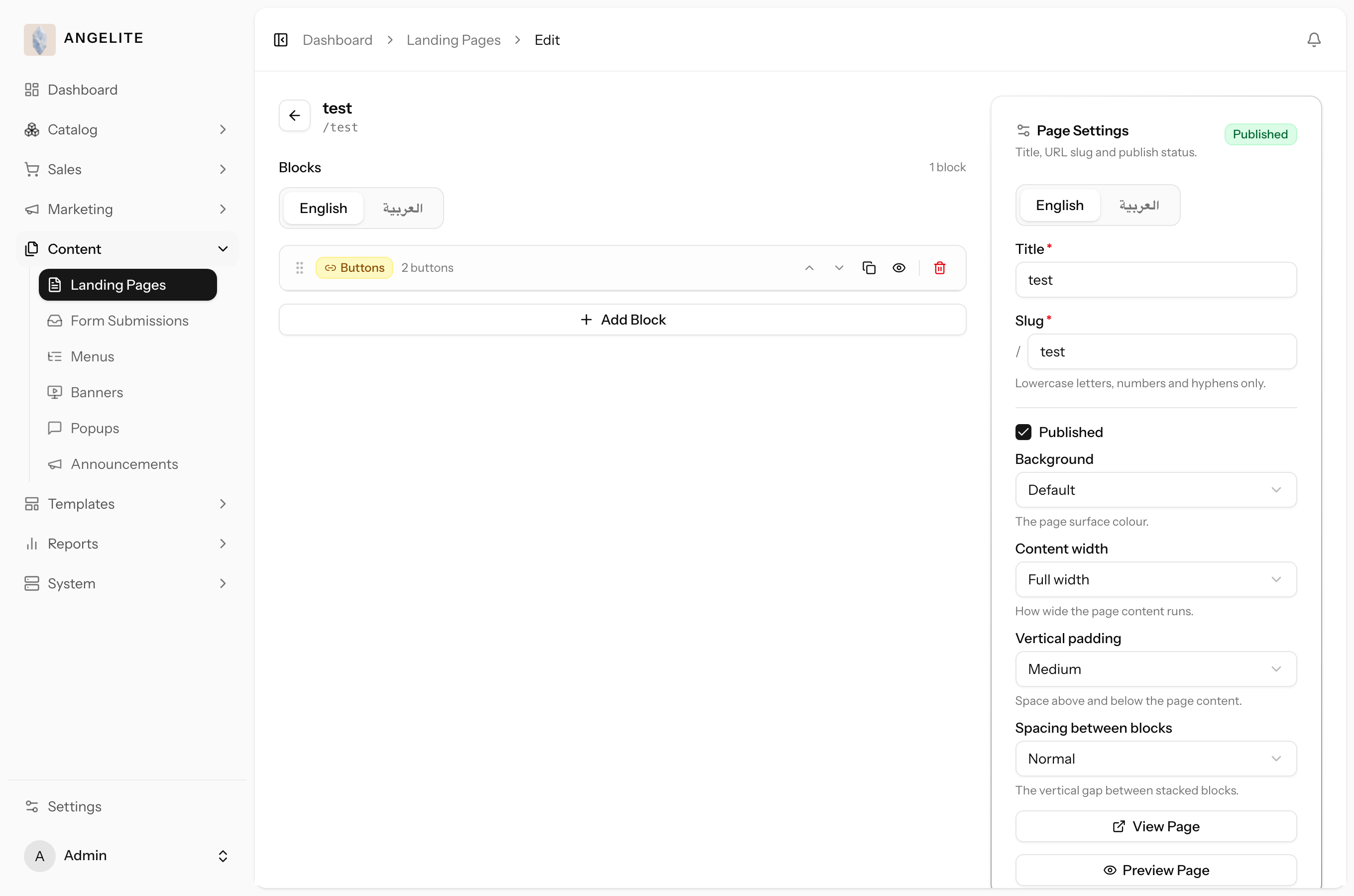
Builds a whole draft page from a brief, arranging the content blocks (a heading, your
story text, a button inviting her to shop) so you have a complete starting point to polish in the
page editor instead of an empty screen.
In practice
Imagine you want a proper "Our story" page telling shoppers how your boutique sources its fabrics and embroidery, but building it block by block from an empty editor feels like a big job.
How Angelite handles it: in Content → Landing Pages you click Generate with AI and describe the page, for example "our story, hand-selected fabrics and tatreez embroidery, family abaya boutique in Qatar." A complete draft page is built with a heading, story text and a closing button inviting shoppers in, and you land straight in the editor. You rearrange the blocks, swap in your own photos, then publish it yourself when it reads right.
How to use it
Open Content → Landing Pages and click Generate with AI.
Describe the page you want, for example an "About us" or a landing page.
A new draft page is created and you are taken straight to its editor.
Review and rearrange the blocks, then publish the page yourself when it is ready.
Where: Content → Landing Pages, with the result opening in the page editor.
Good to know: the new page is saved as an unpublished draft. It stays
hidden from shoppers until you choose to publish it.
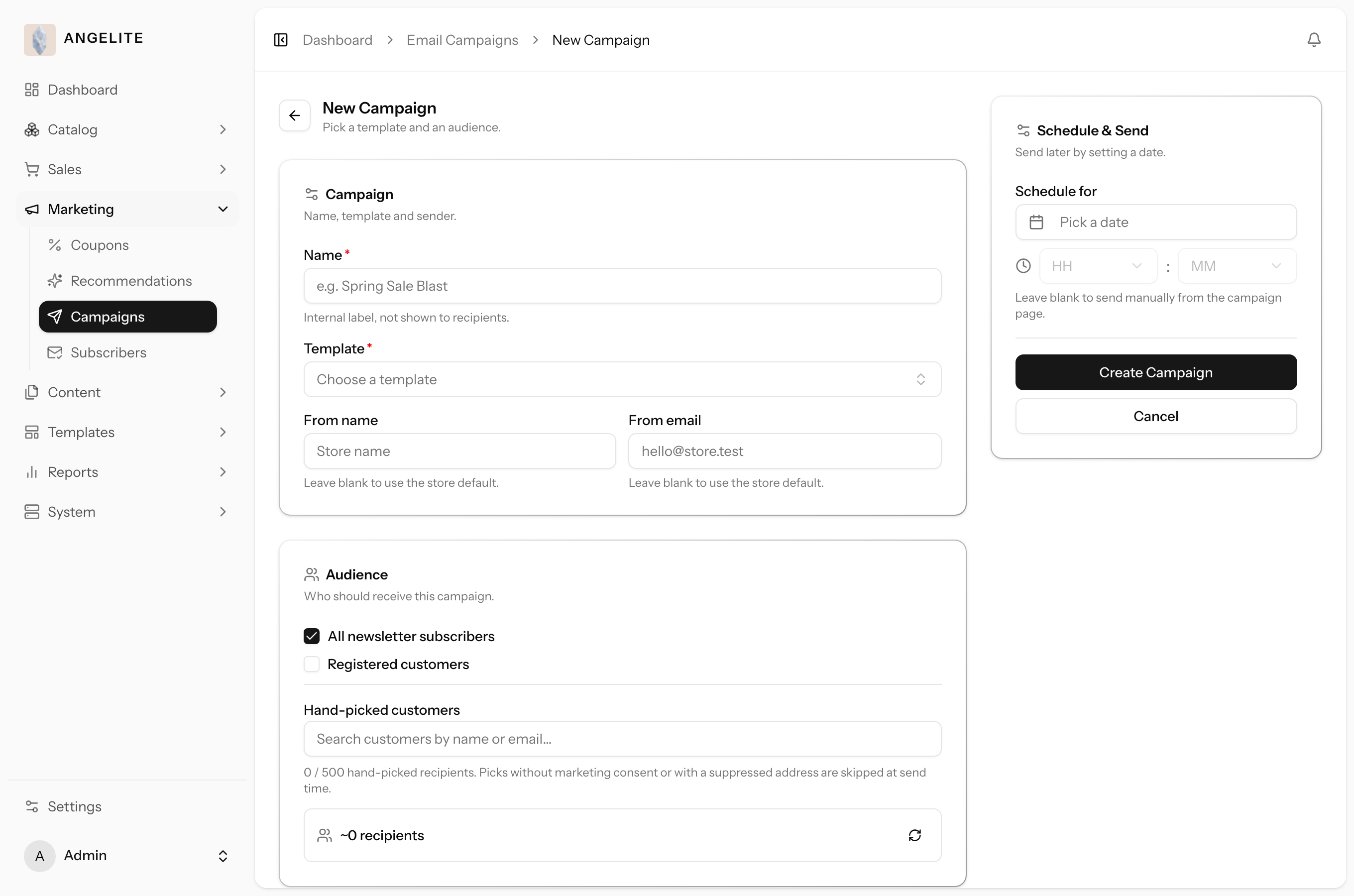
Email & campaign
AdminOptional · AI AssistantOptional · Email Marketing
The problem: Eid is ten days away, the gifting edit is ready, and
the campaign is still a blank subject line; miss the sending window and the moment is gone for a
year.
Drafts the copy for an email and, if you like, a whole campaign built around it, from a
short brief. You get a subject line and laid-out content to refine, not a message that goes out on
its own, so a time-sensitive campaign can go from idea to scheduled send the same afternoon.
In practice
Say Eid is coming up and you want to email your subscribers about a gifting edit, but you are short on time and a blank subject line and empty body are slowing you down.
How Angelite handles it: in the campaigns area you click Generate with AI and describe the message, for example "Eid gift edit, abayas and matching hijab sets, warm festive tone." A draft campaign is built with a subject line and laid-out content, and it opens for editing. You refine the copy, set your audience and timing, then send or schedule it yourself, since the AI never sends on its own.
How to use it
Open the email templates or campaigns area and click Generate with AI.
Describe the message or the campaign you have in mind.
A draft email (or a draft campaign with its email) is created and opened for editing.
Review the copy, make any changes, then send or schedule it yourself.
Where: the email templates and campaign authoring screens.
Also needs the Email marketing module. The AI never sends or schedules a
campaign; it only creates the draft for you to review and send.
Assistant
AI chat
AdminOptional · AI Assistant
The problem: quick questions ("are the embroidered kaftans actually
selling?") deserve quick answers, not an evening of exports and spreadsheet formulas.
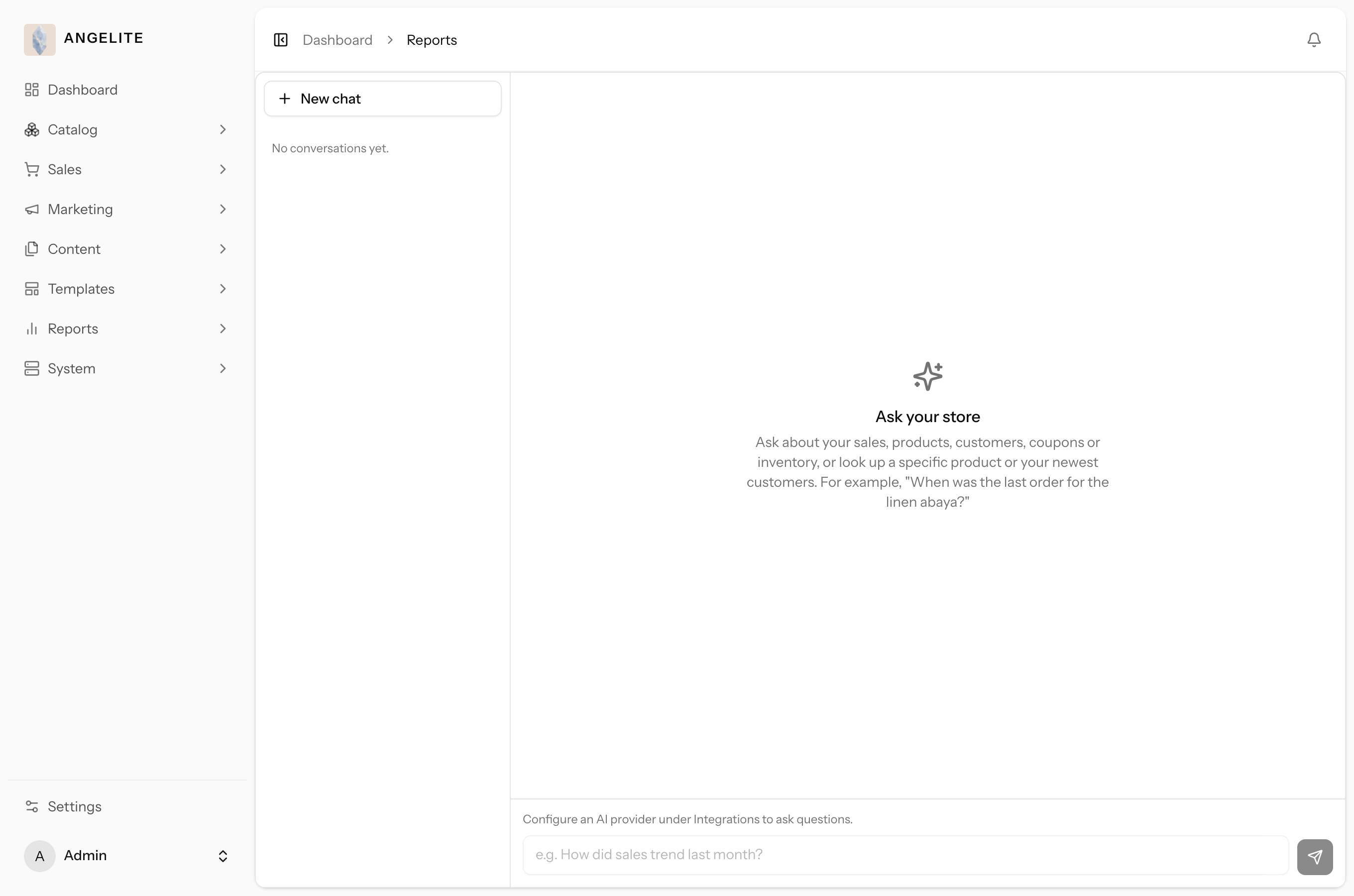
A conversational assistant you can ask plain-language questions about your store, such
as how sales did last week or who your most valuable customers are. It answers from your own trusted
reports, it only ever reads, and it gives the drafting helpers useful context to work from.
In practice
A customer asks at the counter whether the embroidered kaftans have been selling, and rather than dig through spreadsheets you simply want to know how last week went and who your best repeat buyers are.
How Angelite handles it: you open Reports → Ask and type "how did sales do last week?" in plain language. The assistant replies with a short summary and the matching figures in your base currency, drawn only from your own reports. You follow up with "who are my most valuable customers?" and it answers again, and the conversation is saved so you can return to it later.
How to use it
Open Reports → Ask to start a conversation.
Type a question in plain language and send it.
The assistant replies with a short summary and, where relevant, the matching figures.
Keep asking follow-up questions; past conversations are saved so you can return to them.
Where: Reports → Ask.
Good to know: the assistant can only read your existing reports. It
never changes any data, and your reports are all it ever sees.
Behind the scenes
Keeping it accurate
AdminOptional · AI Assistant
The problem: generic AI writing sounds like everyone else's shop,
and correcting the same beige tone in draft after draft is a chore of its own.
Every draft the assistant writes starts from real facts about your store: your name,
your base currency, the languages you sell in, and a short brief you write yourself about your
boutique and its tone. You write that brief once, and every AI button across the admin, and the chat
assistant, uses it from then on, so suggestions consistently sound like you rather than something
generic.
In practice
Say you want every AI-drafted product description to consistently reflect that Angelite is a Doha boutique working in fine fabrics and hand embroidery with a warm, considered tone, without typing that context in every single time you use a drafting button.
How Angelite handles it: you open Settings then AI Assistant once and write a short
brief describing your boutique, its focus on fine fabrics and embroidery detail, and the tone you want. From then on,
every AI button across products, categories, pages, SEO and email, and every answer from Ask
Your Store, is given that same brief along with your store's real name, currency and languages before
it writes anything, so the results consistently sound like your brand without you repeating yourself.
How to use it
Open Settings → AI Assistant.
Write or update your store's brief: who you are, what you sell, and the tone you want.
Save. Every AI button and the chat assistant use this brief, plus your store's real name, currency and languages, from then on.
Where: Settings → AI Assistant.
Good to know: this is the one place to fix a drafting habit you do not
like. If the AI keeps missing your tone, refining the brief here corrects every AI button at
once, not just one of them.
Angelite · Platform Feature GuideChapter 12 · AI Assist