More sales are lost in the last few minutes than anywhere else: a bag forgotten
between phone and laptop, a surprise delivery charge, a payment screen that feels wrong. This
chapter is about not losing a sale you have already half-won: a cart that never forgets, a
checkout that catches mistakes as they happen, and ways to pay that your customers already trust.
The problem: a shopper fills her bag on her phone at lunchtime,
gets called away, and opens the shop on her laptop that evening to find the bag empty. A sale you
had already half-won quietly evaporates.
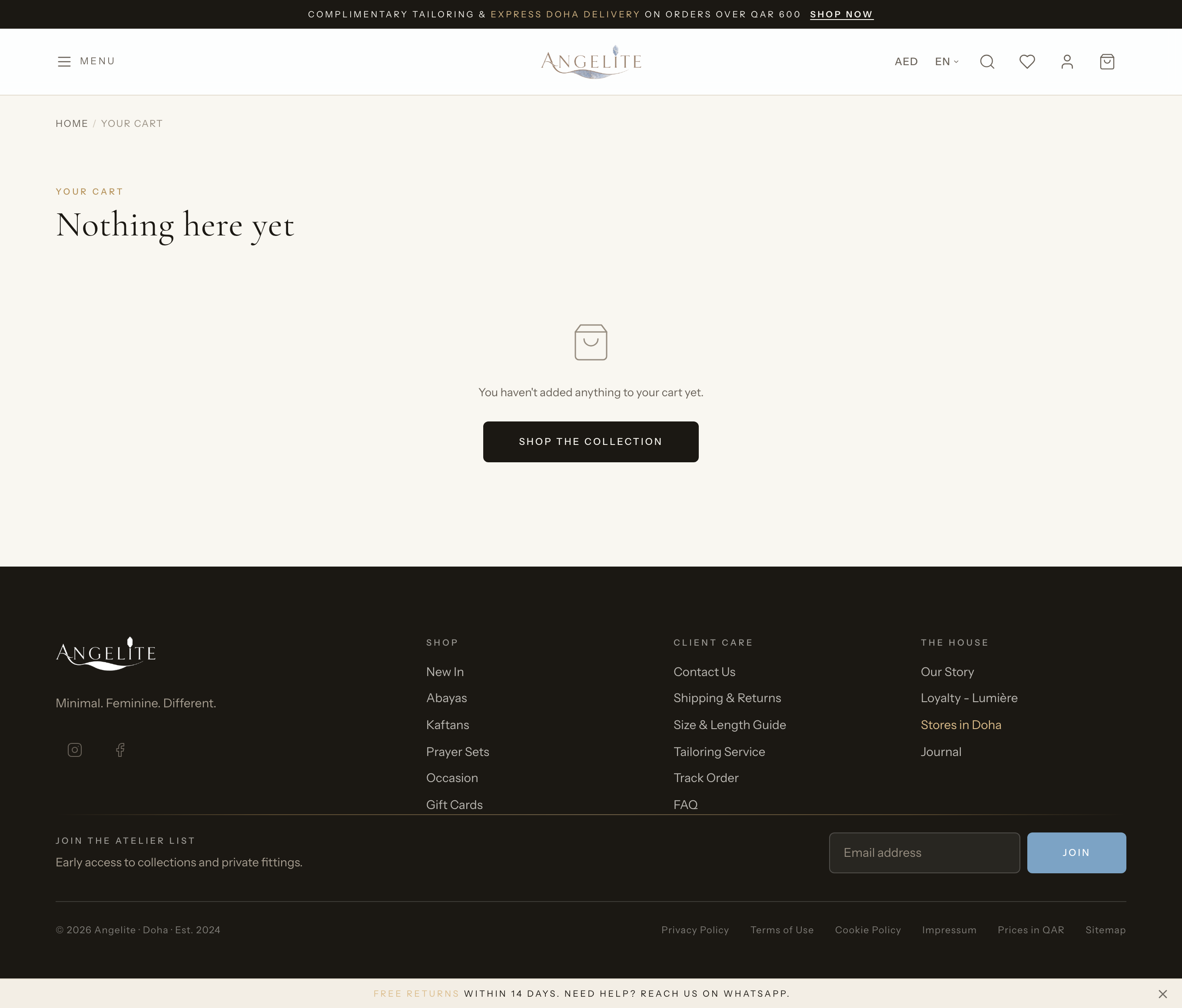
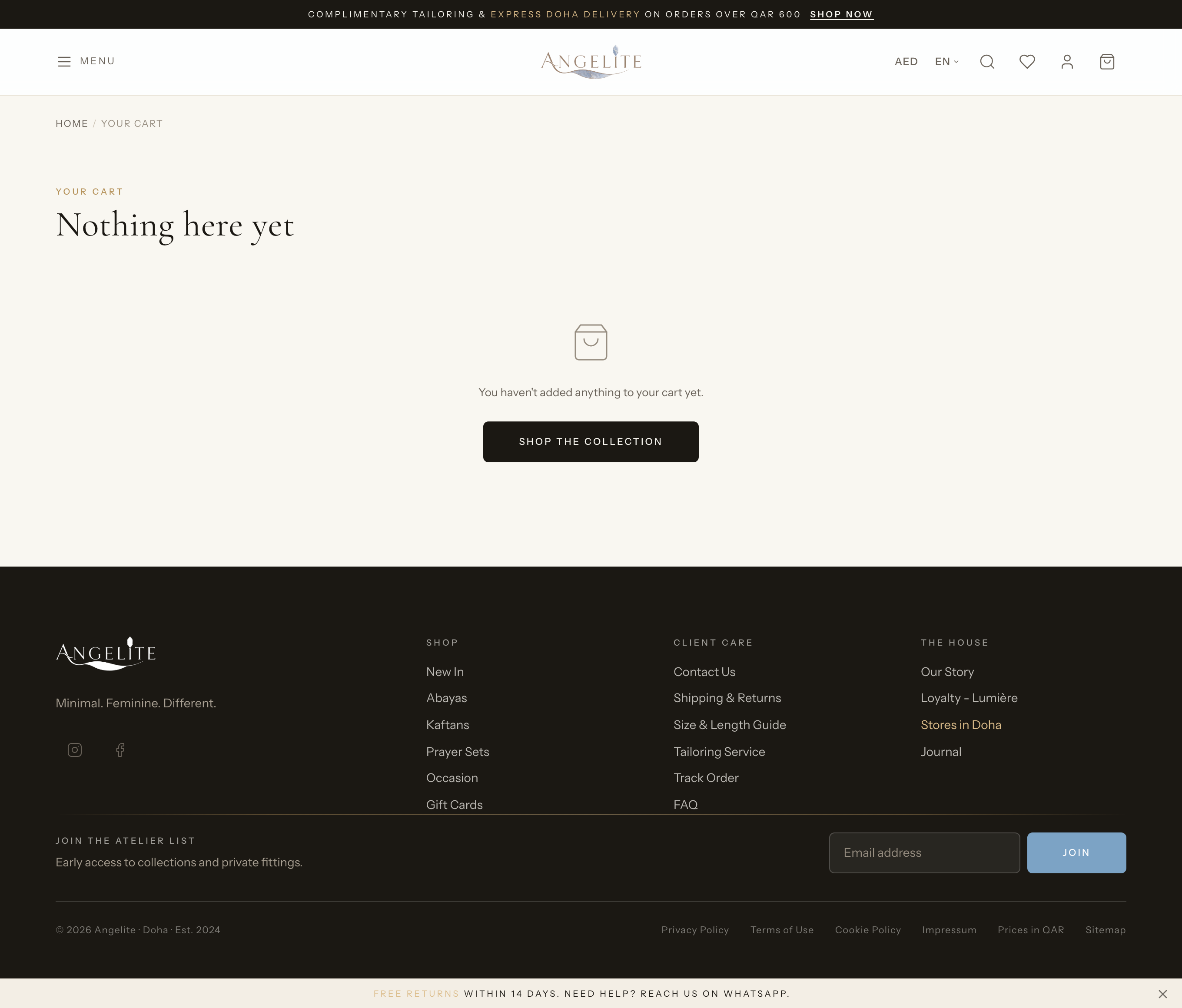
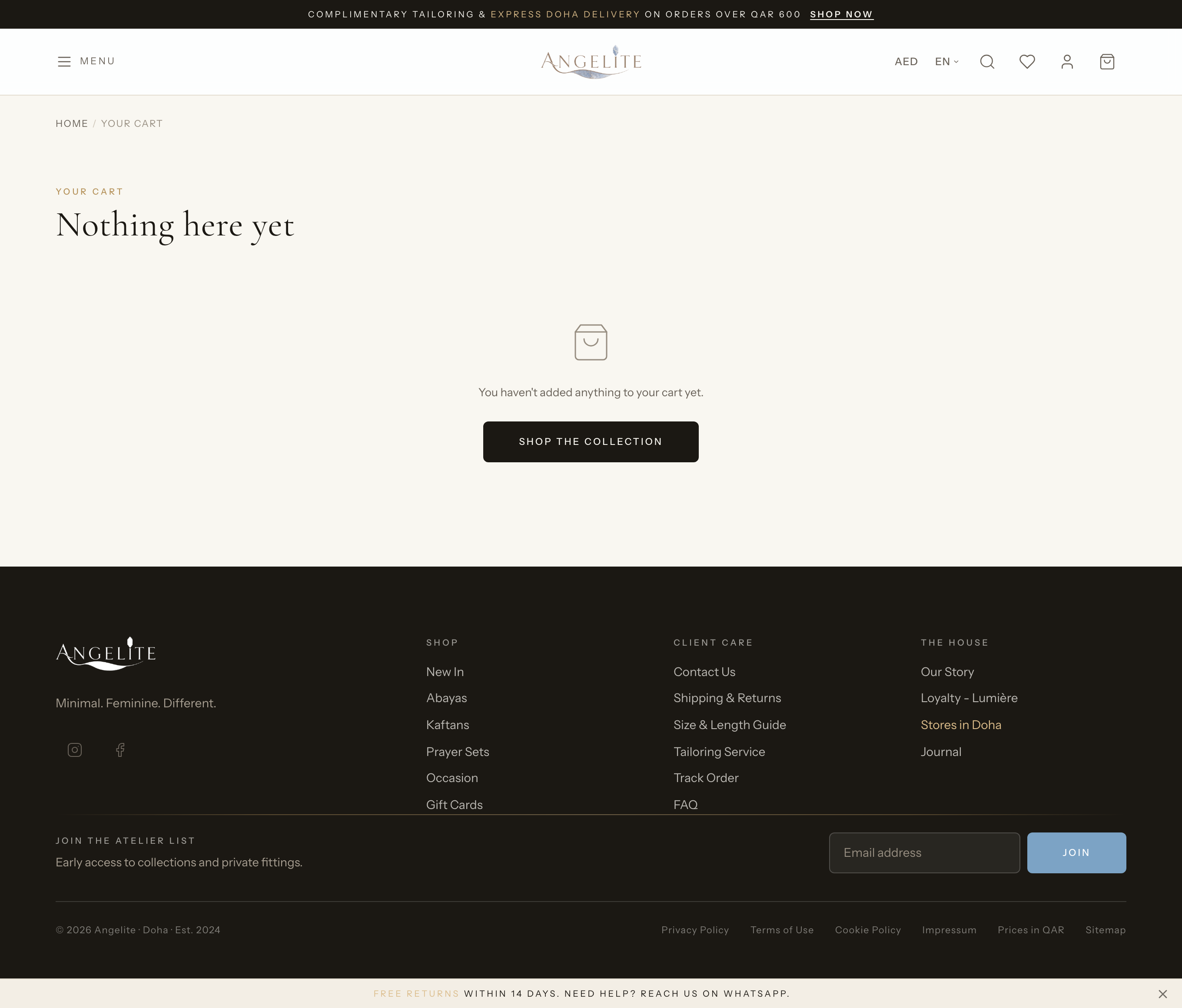
As shoppers add items, a slide-out mini-cart shows what is in the bag, the running
total, and a few suggestions to round out the order. The full cart page lets shoppers change
quantities and remove lines. Carts are kept for guests and signed-in shoppers alike, and a guest's
cart automatically merges into their account when they log in, so a slow decision never costs you
the sale.
In practice
Say a customer browsing on her phone falls for a ready-to-wear black crepe abaya and taps Add to bag, but she is not finished looking yet.
How Angelite handles it: the mini-cart slides in from the side showing the abaya, its quantity and the running total in riyals, plus a short "you may also like" row of matching embroidered kaftans. She can nudge the quantity or remove the line right there, then close the drawer and keep browsing. Whatever she adds stays in the bag, and when she finally signs in to pay, the items she gathered as a guest fold straight into her account so nothing is dropped.
How to use it
On any product, the shopper clicks Add to cart.
The mini-cart slides in from the side, showing the items, the subtotal and "you may also like" suggestions.
Quantities can be changed and lines removed right inside the drawer, or on the full cart page.
When the shopper is ready, they continue to checkout from either the drawer or the cart page.
Where: the cart page, reached from the cart icon in the header.
Good to know: the price of each item is locked in the moment it is
added, so a later price change does not silently alter a shopper's cart; checkout re-checks the
price against the live catalog before charging.
Coupon on cart
Customer
The problem: a shopper holding a discount code from your
newsletter cannot see what it is actually worth to her until she commits to paying, and that
little uncertainty at the final step is exactly where full carts get abandoned.
Shoppers can try a discount code on the cart page and see the saving applied straight
away. The code can be removed just as easily, and the total recalculates live, so the real saving
is on the screen before anyone has to commit to paying.
In practice
Imagine you have emailed an EID15 code to your newsletter list for the Eid gift season, and a customer with two ready-to-wear jalabiyas in her cart wants to see what it saves her before she commits.
How Angelite handles it: on the cart page she types EID15 into the discount field and applies it. The saving appears as its own line and the total drops on the spot, so she can see the new price in riyals before going any further. If she changes her mind she removes the code with one tap and the original total returns. The figure she sees here is a preview; the code is properly checked and claimed at checkout, so what she is shown always matches what she pays.
How to use it
On the cart page, the shopper enters a discount code and applies it.
If the code is valid, the discount appears and the total updates immediately.
The code can be removed at any time, and the original total returns.
Where: the discount-code field on the cart page.
Good to know: the discount shown on the cart is a preview only. The code
is re-checked and finally claimed at checkout, so the amount the shopper sees here always matches what
is charged. Discount codes are created under Marketing → Coupons.
Checkout
Checkout wizard
Customer
The problem: one mistyped digit in a phone number becomes a
parcel the courier cannot deliver, and the first you hear of it is after the abaya has already
left the shop.
A clear, step-by-step checkout that collects the delivery and billing address, the
delivery method, and the payment choice. Each field is checked as the shopper goes, so a bad
address or phone number is flagged while she is still typing, not after a failed delivery.
In practice
A customer in Doha is buying a made-to-order wedding kaftan and wants it delivered to her home but the receipt billed to her husband's address, and she mistypes her phone number along the way.
How Angelite handles it: she clicks Checkout from the cart and works down the steps, entering her home shipping address and ticking the option to add a separate billing address. The moment her phone number comes out wrong the field flags it then and there, rather than letting her reach the end and bounce back. She picks a delivery option, and on Place order the order is created, payment begins, and she lands on a clean confirmation page once it succeeds.
How to use it
From the cart, the shopper clicks Checkout.
They enter the shipping address (and a separate billing address only if it differs).
They pick a delivery option, optionally enter a coupon or gift card, and choose how to pay.
On submit the order is created and payment begins; the shopper lands on a confirmation when it succeeds.
Where: the checkout page, reached from the cart.
Good to know: every amount the shopper sees (discount, shipping and tax)
is confirmed at the moment of charge, so the previewed total and the charged total never drift
apart.
Guest checkout
Customer
The problem: a first-time buyer in a hurry meets a registration
form standing between him and the gift he wants, and he simply leaves. You lose the whole order
over a form he never wanted to fill in.
Shoppers who do not want to create an account can check out with just an email
address. A simple account is quietly created from that email, so the order, its confirmation and
its history all work normally, and they can claim the account later with a password reset.
In practice
Say a first-time visitor wants to grab a ready-to-wear abaya as an Eid gift quickly and has no patience for filling in a sign-up form just to place one order.
How Angelite handles it: on the cart he chooses Continue as guest, types only his email address, and carries on through checkout as normal. A simple account is quietly created from just his email address, so his order confirmation and order history all work just like a registered shopper's. If he later decides he wants an account, he simply requests a password reset on that same email and claims it, with his past order already waiting inside.
How to use it
On the cart, the shopper chooses Continue as guest.
They enter their email address and proceed.
Checkout continues as usual; the order and its emails are tied to that email.
Where: the "Continue as guest" option on the cart.
Good to know: if the email already belongs to a real account, the shopper
is asked to sign in instead, so an existing account is never quietly taken over.
Shipping options & tax at checkout
Customer
The problem: a shopper agrees to one figure and is then hit with
a delivery charge she never saw coming. A surprise cost at the end is the fastest way to turn a
completed sale into an angry message, or an abandoned one.
Once the shopper enters their address, checkout shows the available delivery options
and an estimate of tax for that destination. The chosen delivery cost and the tax estimate flow
straight into the order summary, so the total on screen is the real total for where the parcel is
going, with nothing extra appearing after payment.
In practice
A customer ordering a ready-to-wear abaya in a chiffon colorway to an address in Al Wakrah wants to know what delivery will cost and whether any tax applies before she agrees to pay.
How Angelite handles it: as soon as she enters her delivery address the available options appear with their prices, for example a standard courier and a faster same-day option, and she picks the one she wants. The order summary instantly folds in the delivery charge she chose and the tax estimate worked out for that exact destination, so the total she sees is the total for where the parcel is actually going. Those figures are worked out by the store itself from her real cart, and checked once more when the order is placed.
How to use it
The shopper enters their delivery address at checkout.
The delivery options appear with their prices; the shopper picks one.
The summary updates to show the chosen delivery cost and the tax estimate for that address.
Where: the delivery step of checkout, after the address is entered.
Good to know: the delivery price and tax are always worked out by the
store from the real cart, and checked again at the moment the order is placed, so the total the
shopper agreed to is the total that is charged.
Gift card at checkout
CustomerOptional · Gift Cards
The problem: a gift card redeemed by hand, a code looked up in a
notebook, a discount typed in manually, is an error waiting to happen: a stale balance, a card
spent twice, an awkward part-payment worked out on a calculator while the customer waits.
Shoppers can apply a gift card to an order, and its balance comes straight off the
total automatically. If the card does not cover the whole order, the shopper simply pays the rest
by another method; redeeming a gift never becomes a manual step for you or the customer.
In practice
Imagine a customer received a 200-riyal Angelite gift card for her birthday and is buying a made-to-order kaftan with hand-beading that comes to 320 riyals.
How Angelite handles it: at checkout she enters her gift-card code, and the 200-riyal balance is taken straight off the order, leaving 120 riyals to settle. She pays that remaining 120 riyals with her card as usual and the order goes through. Had the card covered the whole kaftan, there would be nothing left to pay and she would finish without touching a card at all. Gift cards can be switched on or off under Settings → Features.
How to use it
At checkout, the shopper enters their gift-card code.
The card's balance is applied to the order and the total drops accordingly.
The shopper pays any remaining amount with their chosen payment method, or nothing more if the card covers it all.
Where: the gift-card field at checkout.
Optional module: switch Gift cards on or off under
Settings → Features.
Paying
Payment (charge & callback)
Customer
The problem: one customer pays by card, the next only trusts
cash on delivery, a third insists on a bank transfer. Offer just one of those and you lose the
other two; and an order that looks paid but never actually was sends your team chasing a sale
that does not exist.
Shoppers pay using whichever payment providers you have enabled, including card
processors and offline options like cash on delivery and bank transfer. The order is confirmed
the moment the payment is real, and an order that ends up costing nothing (fully covered by a
gift card or wallet balance) settles on its own without involving a payment provider at all.
In practice
A customer in Qatar prefers to pay cash on delivery for a ready-to-wear abaya, while another shopper the same day wants to pay by card and gets pulled into her bank's verification step.
How Angelite handles it: at the payment step each shopper picks the option that suits them from whatever you have enabled. The cash-on-delivery customer confirms and her order is placed for the courier to collect payment on arrival. The card customer is taken to her payment provider's secure page, completes her bank verification, and is returned to the store, where the confirmation page appears the instant payment is confirmed. The store always charges the total it worked out itself, and a paid order is confirmed by whichever arrives first: the shopper returning to the store, or the provider's own notification that the money went through.
How to use it
At the payment step the shopper picks an enabled payment option.
For an online provider, they are taken to the provider's secure page to complete payment, then returned to the store.
When payment is confirmed, the order moves to confirmed and the shopper sees the confirmation page.
Where: the payment step of checkout.
Good to know: the amount charged is always the total the store has
worked out itself, and a confirmed payment counts from whichever arrives first: the shopper
returning to the store, or the provider's own notification that the money went through.
Embedded checkout
Customer
The problem: the moment a shopper is bounced away to an
unfamiliar payment screen, doubt creeps in. Some of them close the tab right there, with a full
cart left behind.
For a smoother experience, card entry (with Stripe) and the PayPal buttons can appear
right inside the checkout page, so many shoppers never leave the store to pay. Card verification
steps, where a bank requires them, are handled in place too.
In practice
Say a regular customer buying an evening kaftan as an Eid gift is wary of being bounced off to an unfamiliar payment screen and prefers to stay on the Angelite store the whole way through.
How Angelite handles it: at the payment step the card fields appear inline right on the checkout page (or the PayPal buttons, if that is her choice), so she types her card or approves PayPal without ever leaving the store. If her bank asks for an extra verification step, that is handled in place too, and the order confirms the moment it clears. Her card details go straight to the payment provider and never touch your store, so there is nothing sensitive for your shop to hold.
How to use it
At the payment step, the card fields or PayPal buttons appear inline, depending on the chosen option.
The shopper enters their card or approves the PayPal payment without leaving the page.
Any extra bank verification is handled inline, and the order confirms on success.
Where: the payment step, when an inline gateway is the active option.
Good to know: the shopper's card details go straight to the payment
provider and never touch your store, so there is nothing sensitive for your shop to hold.
Payment methods
Admin
The problem: a payment option that is visible but not fully set
up is worse than no option at all: the shopper picks it, the payment fails at the till, and the
sale dies at the very last step, through no fault of hers.
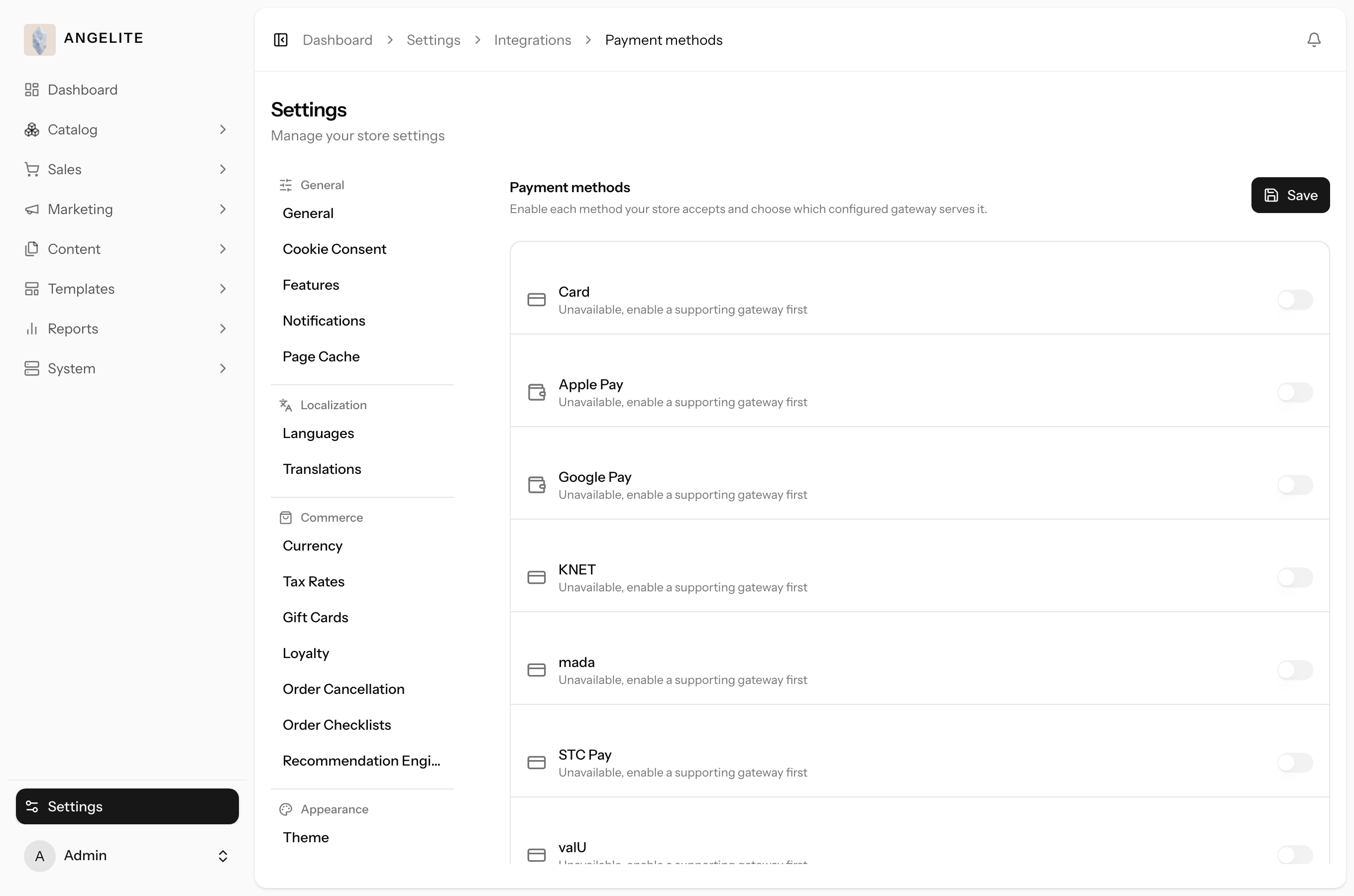
You choose which ways a shopper can pay, card, digital wallets, local Gulf card
schemes, cash on delivery, bank transfer, or PayPal, by switching each one on, and for every one
you switch on you pick which of your connected payment providers should actually handle it.
Checkout then only ever offers the methods you have turned on and properly connected; anything
half-finished simply never appears, so a shopper is never offered a payment option that would
fail.
In practice
Say you want customers to be able to pay by card and also to see a bank transfer option for those who prefer to pay by wire, while your second card provider is still being set up and not quite ready.
How Angelite handles it: you open Settings → Integrations → Payment Methods and switch on Card, pointing it at the provider you already have connected, and switch on Bank Transfer, which needs no provider since it is built in. Because your second card provider is not finished yet, you simply leave off the method that would use it, so shoppers are never shown a card option that would fail at the till. The moment that provider is properly connected, you flip its method on and it appears at checkout straight away.
How to use it
Open Settings → Integrations → Payment Methods.
For each way you want customers to pay, switch it on and choose which connected provider should handle it.
Save. Checkout on the storefront updates immediately, showing only the methods you have switched on and properly connected.
Where: Settings → Integrations → Payment Methods.
Good to know: every online provider is tested safely before it can
take real money. You connect it in test mode first, and Angelite only lets you switch it to real
payments once a test payment has gone through successfully, so a half-finished setup can never
reach a paying customer.
Saved payment methods
Customer
The problem: your most loyal customer buys a new abaya every few
weeks, and every single visit she has to fetch her card and retype the whole number. One evening
the card stays in the other room, and so does the sale.
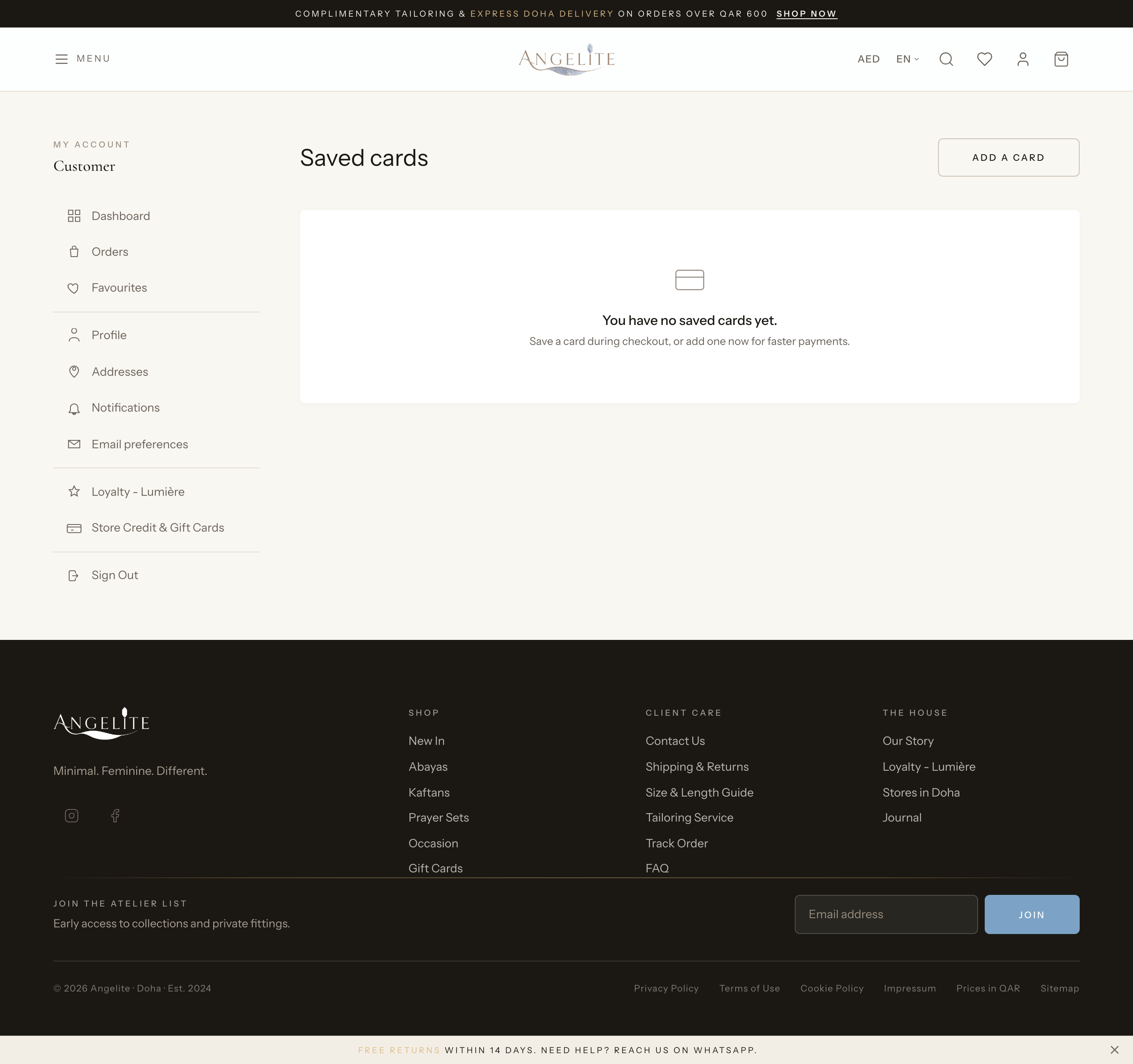
Returning customers can save a card for faster checkout next time, and remove a saved
card whenever they like. Saved cards are offered alongside a "use a new card" option at checkout,
so a repeat purchase takes one tap instead of a hunt for the handbag.
In practice
A loyal customer who buys a new ready-to-wear abaya every few weeks is tired of typing her card details in full each time she treats herself.
How Angelite handles it: after a purchase she keeps her card on file, and from then on her next checkout offers that saved card next to a "use a new card" option, so she can pay with a single tap. She manages it from her account area under payment methods, where she can see her saved card and remove it whenever she likes. The store never holds her raw card number; the saved card is only a secure reference held by the payment provider, and she can only ever see and use her own.
How to use it
A signed-in customer opens their payment methods in the account area.
They can see saved cards and remove any they no longer want.
At the next checkout, a saved card can be chosen with a single tap instead of re-entering details.
Where: the account area, under payment methods.
Good to know: the store never holds raw card numbers; a saved card
is only a secure reference held by the payment provider, and a customer can only ever see and use
their own.