A beautiful catalogue does not sell itself: promotions need running, shoppers need a
gentle nudge, and your news needs to reach every visitor. This chapter covers the tools that do all
of that without a developer: discount codes that end themselves, a recommendation engine that plays
shop assistant on every product page, and the banners, popups and announcement strips you place
around the storefront yourself.
The problem: a promotion that depends on your memory misbehaves:
the Eid code is still live a week after the holiday, or one shopper quietly reuses it all month,
and every extra redemption is margin you never meant to give away.
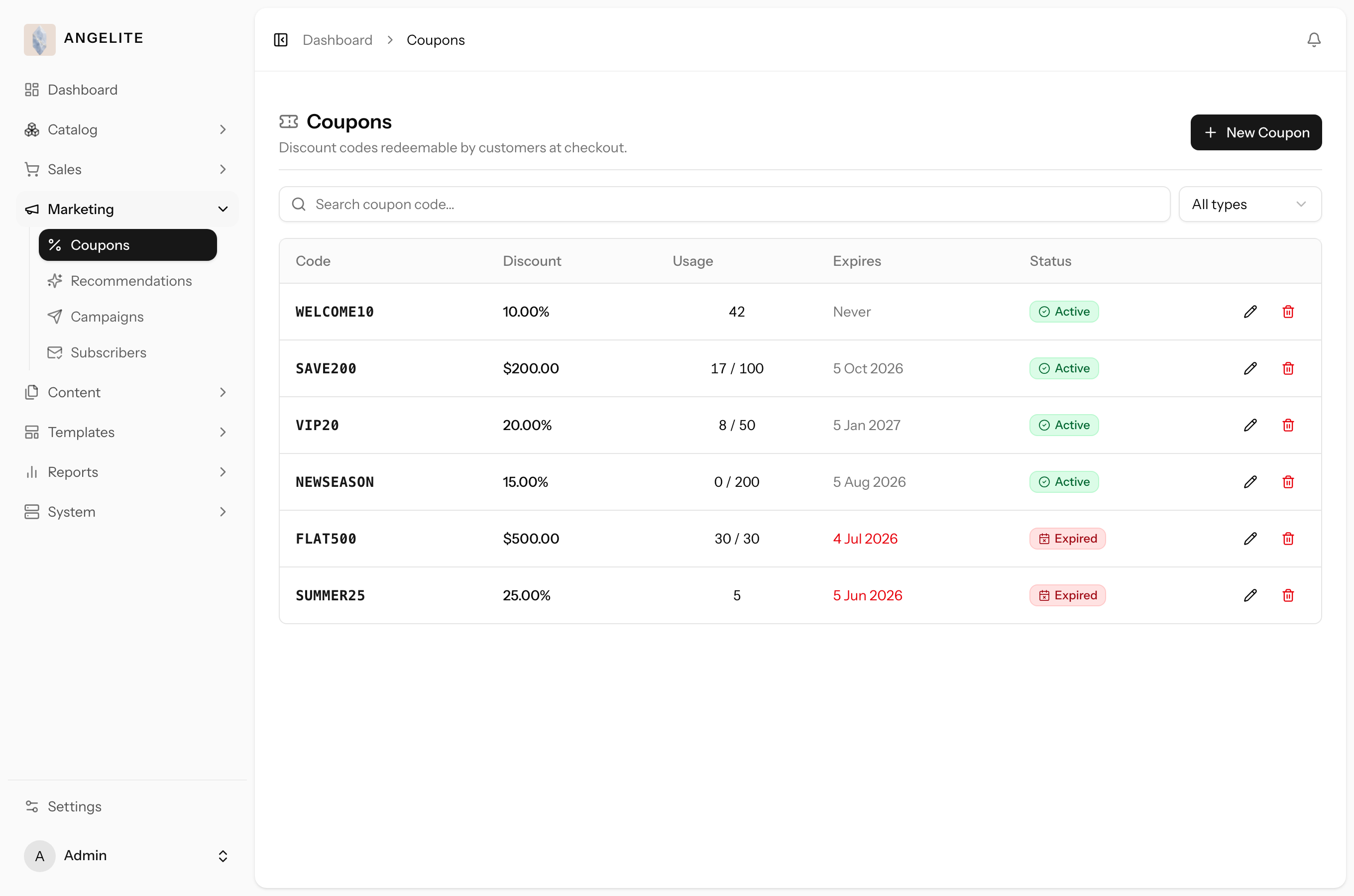
Discount codes a shopper types in at checkout to take money off the order. A coupon takes
either a percentage off the basket or a fixed amount, and you set the
guard rails once: a minimum order value, how many times the code may be used in total, how many times one
customer may use it, and an expiry date. After that the promotion runs itself and stops itself.
In practice
Say you want to run a three-day Eid promotion and offer 15% off any order over 300 riyals, but you only want it to run until the end of the holiday and you do not want one shopper draining it again and again.
How Angelite handles it: open Marketing → Coupons, click Add coupon, type a code like EID15, pick percentage and enter 15. Set the minimum order to 300, set the per-customer uses to 1, and pick the expiry date as the last day of Eid. Save, and the code goes live instantly. A shopper buying a made-to-order abaya priced at 420 riyals, deposit included, enters EID15 at checkout, sees 63 riyals come off, and once the expiry passes the code simply stops working without you touching it again.
How to use it
Open Marketing → Coupons to see your codes, searchable by code.
Click Add coupon (or click a row to edit), then enter the code and pick percentage or fixed.
Set the discount value, and add any limits: minimum order, total uses, per-customer uses, and an expiry date.
Save. The code is now live and shoppers can apply it at checkout.
Where: Marketing → Coupons, with create and edit happening in a dialog on the same page.
Good to know: the discount shown on the cart and checkout pages is always
exactly the amount that gets charged, and usage limits are enforced safely even if two people redeem the
same code at the same moment. A coupon that expires or hits its limit simply stops working; it is never
deleted on its own.
Recommendations
Recommendations engine
Admin
The problem: pairing every abaya with the right hijab or shayla by
hand, across the whole catalogue, is a job that never ends; the moment you fall behind, shoppers land
on product pages that lead nowhere else and drift away.
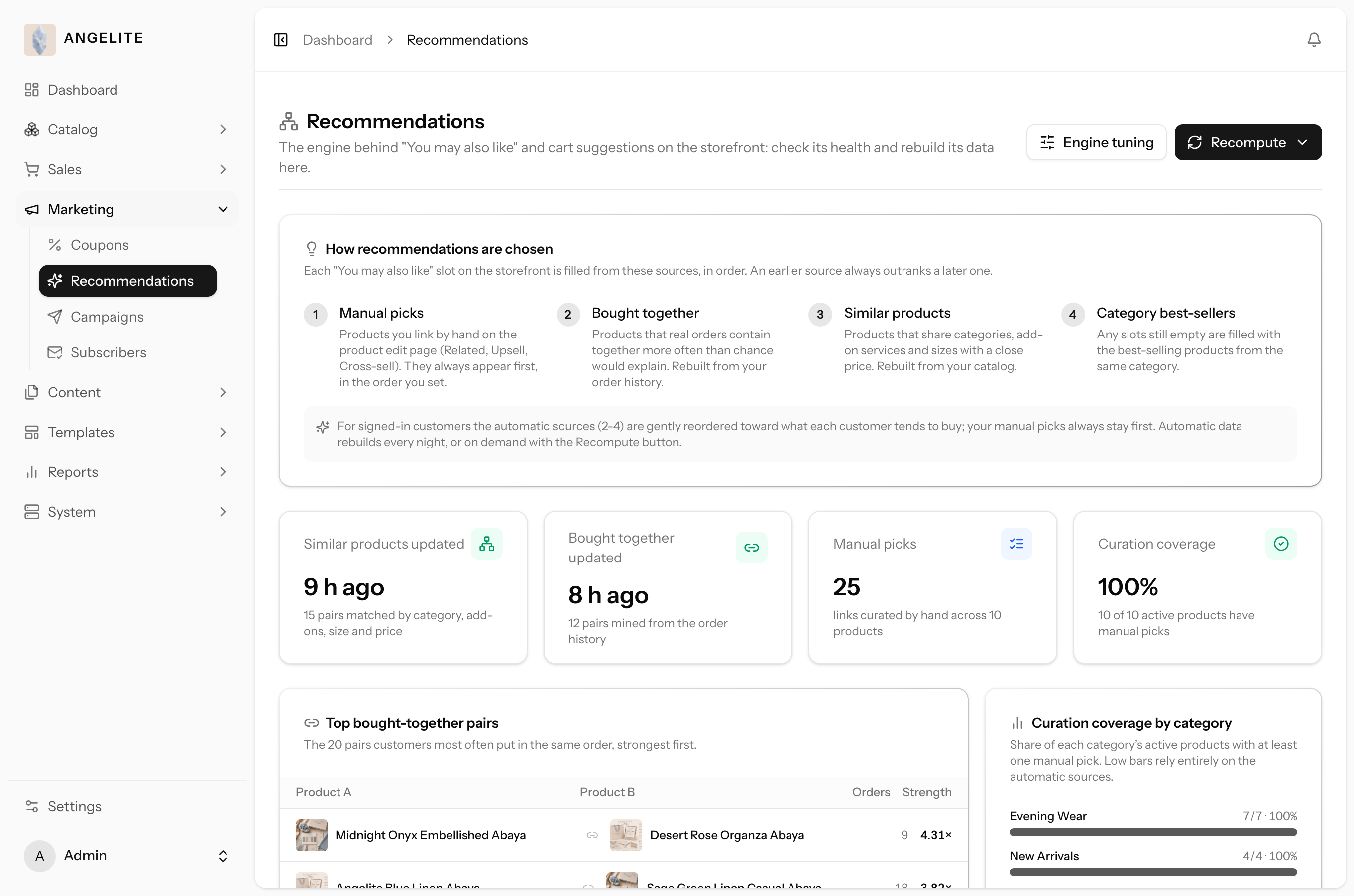
The system that decides which "you may also like" products to show. It blends four sources
in order: the links you hand-pick yourself, pieces customers frequently buy together, pieces that are
simply alike, and a final personal touch based on what each shopper has bought before. When the better
sources run short, it tops up from the same categories, so a suggestion strip is never empty.
In practice
Imagine you have just added a new collection of embroidered evening kaftans and you want shoppers browsing them to also see matching hijabs and abayas in the same colourway, without you manually wiring up every single pairing across the whole catalog.
How Angelite handles it: for the few kaftans where you have an obvious match in mind, you hand-pick the related pieces in the product editor, and those always show first. For everything else the engine fills the rest of the strip on its own, drawing on what customers buy together and what is alike in category and price. You can open Marketing → Recommendations to see how it is performing, and press Recompute to refresh the suggestions right away rather than waiting for the overnight run.
How to use it
Open Marketing → Recommendations to see how the engine is performing.
Review the insights, which show what is driving the suggestions across your catalog.
Use the Recompute button to refresh the scores on demand instead of waiting for the nightly run.
To override the automatic picks for a specific product, hand-pick its related products in the product editor (Chapter 01).
Where: Marketing → Recommendations, with the insights view and the recompute button.
Good to know: your hand-picked links always come first, so you can guarantee
a perfect pairing while the engine fills in the rest automatically. Scores refresh on a nightly schedule,
and the recompute button lets you refresh them straight away.
Related: to fine-tune how strongly the engine weighs each source, see
Recommendation Engine tuning in Chapter 14, Settings.
Product similarity
Admin
The problem: suggesting the right second piece is what a good shop
assistant does; online, nobody is standing next to the shopper. A brand-new listing is the hardest
case: no sales history, no hand-picked partners, nothing to lean on.
The part of the engine that gives a new listing company from day one. The store compares
category, sizes and price to find close matches elsewhere in your catalogue, so even a piece nobody has
bought yet shows sensible next steps instead of a dead end.
In practice
Say a customer is looking at a made-to-order abaya in a rose-blush crepe that just went live, so no one has bought it alongside anything else yet and you have not had time to hand-pick partners for it.
How Angelite handles it: even with no order history to lean on, the store still fills the suggestion strip with sensible matches, because it quietly compares the abaya's category, size run, embroidery details and price against the rest of your catalogue and surfaces the closest pieces, such as other rose-blush abayas in a similar price band. It runs on its own every night and shortly after you edit a product, and if you want it sharper immediately you can press Recompute on the Recommendations page.
What it means for you
This works automatically; there is nothing to switch on.
Matches refresh every night, and shortly after you edit a product, so they stay current.
You can force a fresh calculation any time from the Recompute button on the Recommendations page.
Where: surfaced through Marketing → Recommendations; it runs behind the scenes.
Tip: keeping categories, sizes and add-ons accurate on each product makes the
matches sharper, since those are the details being compared.
Co-purchases
Admin
The problem: suggesting the right second piece is what a good shop
assistant does; online, nobody is standing next to the shopper to mention that this abaya usually
leaves the shop with its matching hijab, and you cannot personally spot every pairing your customers
invent.
The store learns those pairings from real orders. When customers keep buying two pieces in
the same order, that combination starts being suggested on its own, so the add-ons your shoppers have
already proven are offered to the next shopper automatically.
In practice
You keep noticing that shoppers who buy a particular ready-to-wear abaya nearly always add the matching hijab and a travel garment bag to the same order, and you want the store to start nudging that combination on its own.
How Angelite handles it: you do not have to set anything up. As those orders pile up, the store learns the pattern straight from your real sales history and starts showing the hijab and garment bag on the abaya's page as things people genuinely buy together. The pairings refresh from your orders every night, and you can press Recompute on the Recommendations page if you want the latest buying habits reflected at once.
What it means for you
This works automatically and improves as more orders come in.
The pairings refresh every night from your order history.
You can refresh them on demand from the Recompute button on the Recommendations page.
Where: surfaced through Marketing → Recommendations; it runs behind the scenes.
Good to know: because this reflects what shoppers actually buy together, it
is given more weight than plain similarity when the store builds its suggestions.
Personalization
Admin
The problem: suggesting the right second piece is what a good shop
assistant does, and the best assistants remember each regular's taste; online, nobody is standing next
to the shopper, and every visitor sees the same strip whether she loves plain crepe or heavy beading.
The final touch for signed-in shoppers. The store quietly learns each customer's recent
taste from what she buys and moves the pieces she is most likely to love to the front of her suggestions.
Interest fades gently week by week, so what she wants now counts for more than old habits.
In practice
Say a regular customer has been buying muted, minimal-embroidery abayas lately, plain crepe rather than heavily beaded pieces, and you want her "you may also like" strips to lean toward the styles she clearly favours right now.
How Angelite handles it: because she is signed in, the store quietly notices her recent plain-crepe purchases and gently reorders her suggestions so similarly understated pieces rise to the top, while still keeping your hand-picked pairings in their place. If her taste shifts later, say she starts ordering heavier trousseau pieces for wedding season, the old preference eases off a little each week on its own, so her strips follow her current interests instead of being stuck on what she bought months ago. Guests, who are not signed in, simply see the standard suggestions.
What it means for you
This works automatically for logged-in customers; guests see the standard suggestions.
A shopper's preferences build up from her orders and ease off a little each week on their own.
No setup is needed; it gently reorders the suggestions without changing which products qualify.
Good to know: personalization only re-orders the existing suggestions, it
never replaces your hand-picked links or the other sources, so curated pairings stay in charge.
On-site placements
Banners
Admin
The problem: the new collection is ready, but the homepage still leads
with last month's promotion, and swapping the picture means messaging a developer and waiting your
turn.
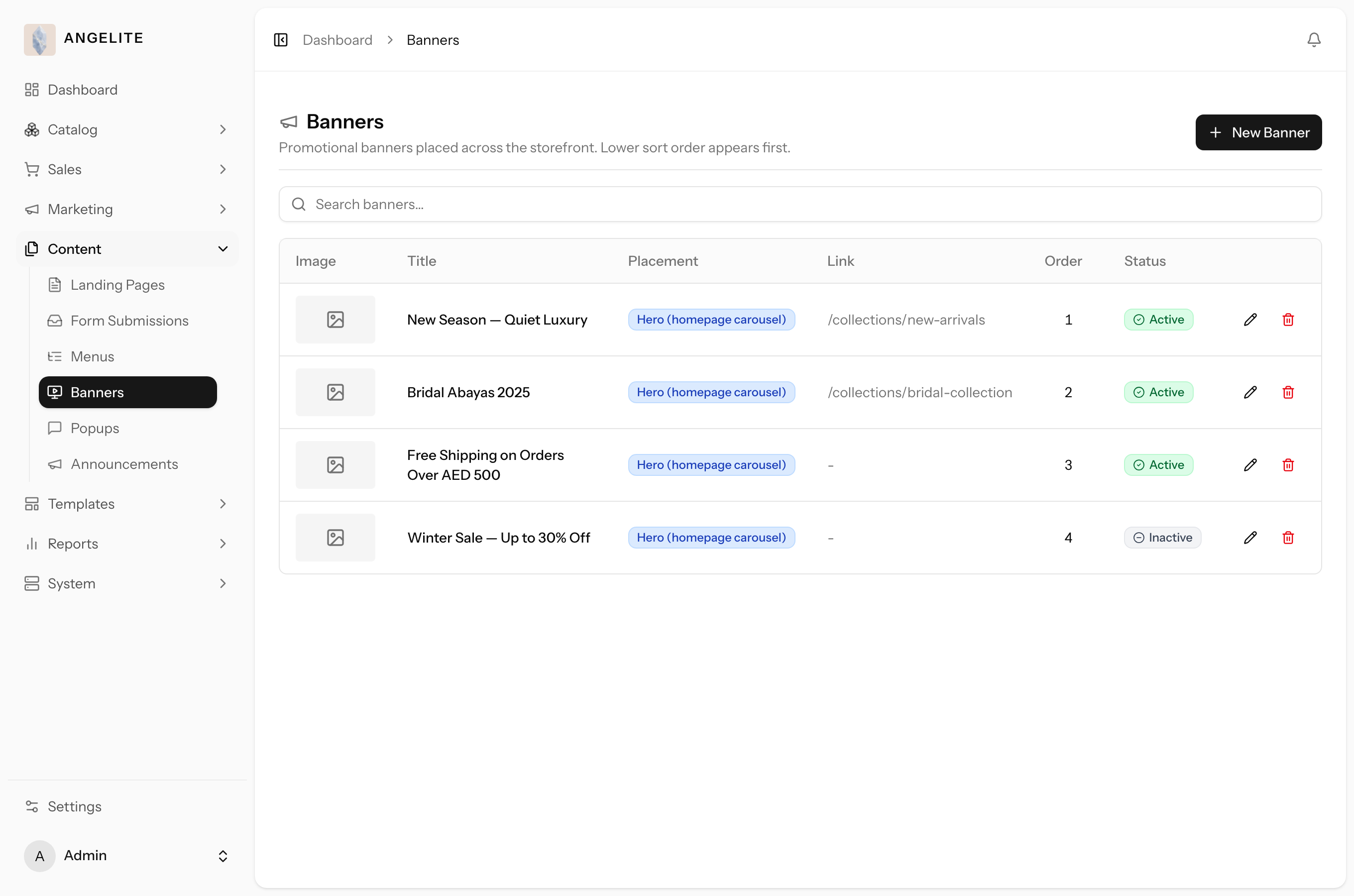
Promotional image banners you place around the storefront yourself, such as the homepage
hero, bands above and below it, and slots near the footer. Each banner has its own desktop, tablet and
mobile images, an optional clickable link, and a tidy set of look-and-feel choices, so a promotion can
launch and retire in minutes.
In practice
Imagine a new wedding-season trousseau collection is launching and you want a striking homepage hero image that sends anyone who clicks it straight to that collection, looking right on a phone as well as a laptop.
How Angelite handles it: open Content → Banners, click Add banner, give it a title, and choose the homepage hero placement. Upload your desktop, tablet and mobile images so it looks crisp on every screen, then set the link target by picking the trousseau collection. Adjust the tidy presentation options for corners, spacing and an optional button, switch it on, and save. When the launch is over you simply switch the banner off and it stays saved for the next time you need it.
How to use it
Open Content → Banners and click Add banner (or click a row to edit).
Give it a title, choose a placement (where it shows), and upload the desktop, tablet and mobile images.
Optionally set a link target by picking a product or category, or typing a safe web address.
Adjust the presentation options (corners, spacing, animation, optional button) and switch it on, then save.
Where: Content → Banners, with create and edit dialogs on the same page.
Good to know: the look options are fixed, safe presets rather than raw styling,
and any link you set is checked to be a safe destination. To pause a promotion, just switch the banner off;
it stays saved for next time.
Popups
Admin
The problem: a first-time visitor browses for a minute and leaves
without a trace, offer unseen; yet a message that jumps out on every page, on every visit, is exactly
what drives your regulars away.
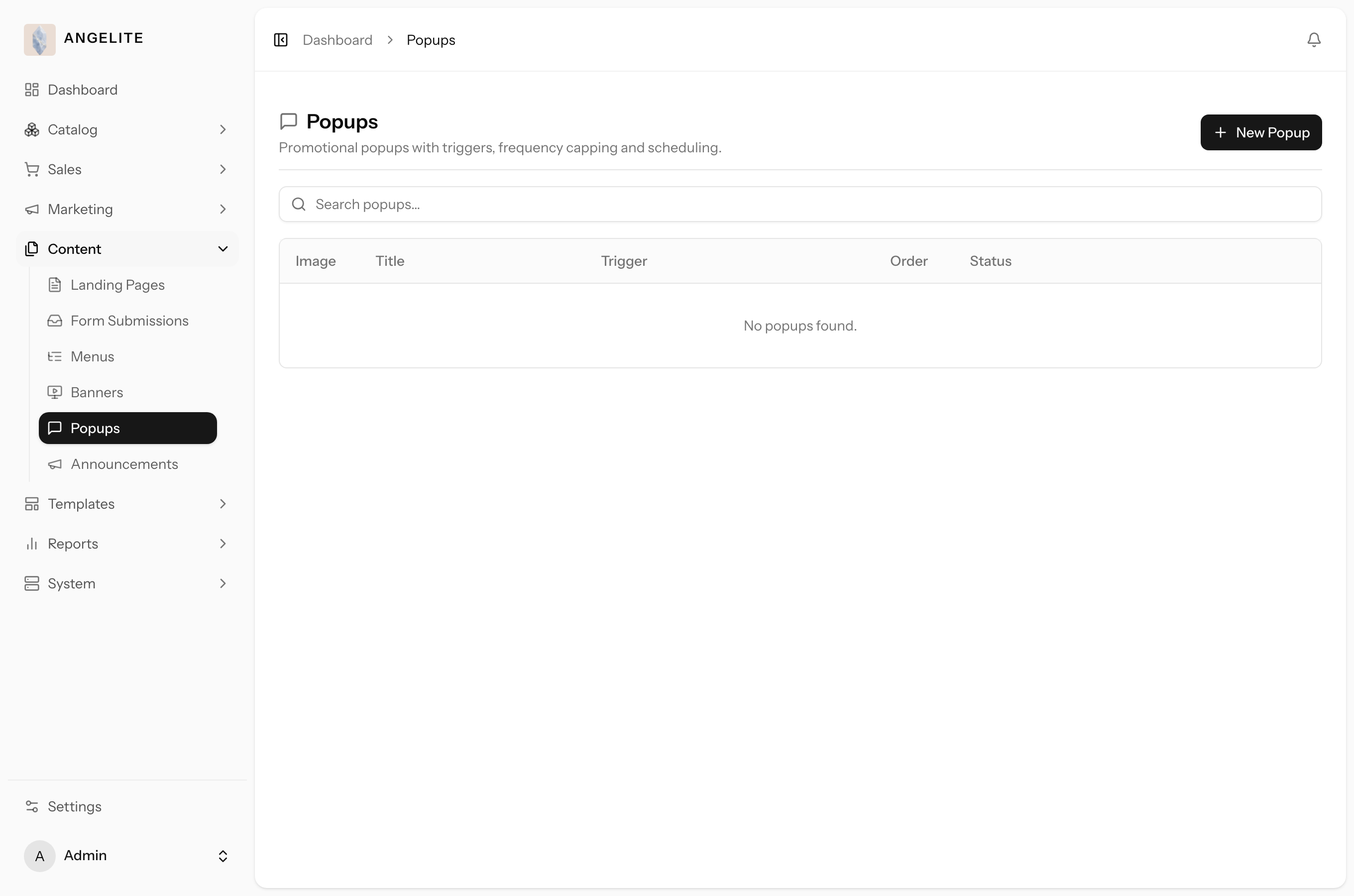
An overlay that appears on top of the storefront with an image, optional heading and text,
and an optional button. You control when it appears (as the page opens, after a few seconds, when she
scrolls, or as she is about to leave), where it sits, and how often a visitor may see it again, so the
message lands once, at the right moment, instead of nagging.
In practice
Say you want to capture first-time visitors with a "10% off your first order" message, but only as they look ready to leave, and you do not want it nagging the same person on every single visit.
How Angelite handles it: open Content → Popups, click Add popup, upload your image and write the heading and text in both English and Arabic. Add the offer button and link, then choose the about-to-leave moment so it appears just as a visitor moves to go, and set it to re-show only once every few days so it never feels pushy. Optionally give it a start and end date for the campaign, switch it on, and save. It quietly waits for the right moment instead of interrupting browsing.
How to use it
Open Content → Popups and click Add popup (or click a row to edit).
Upload the images, add the heading and text in each language, and set an optional link and button.
Choose when it appears (as the page opens, after a delay, when she scrolls, or as she is about to leave) and how often it may re-show (every visit, once per session, or once per number of days).
Optionally set a start and end date, switch it on, and save.
Where: Content → Popups, with create and edit dialogs on the same page.
Good to know: only one popup shows at a time, and the one with the lowest sort
order wins. If you set a schedule, the popup only appears inside that date window.
Announcements
Admin
The problem: the one thing every visitor should know, free shipping
over 500 riyals or a sale that ends Friday, is easy to miss when it lives only in a banner someone may
scroll straight past.
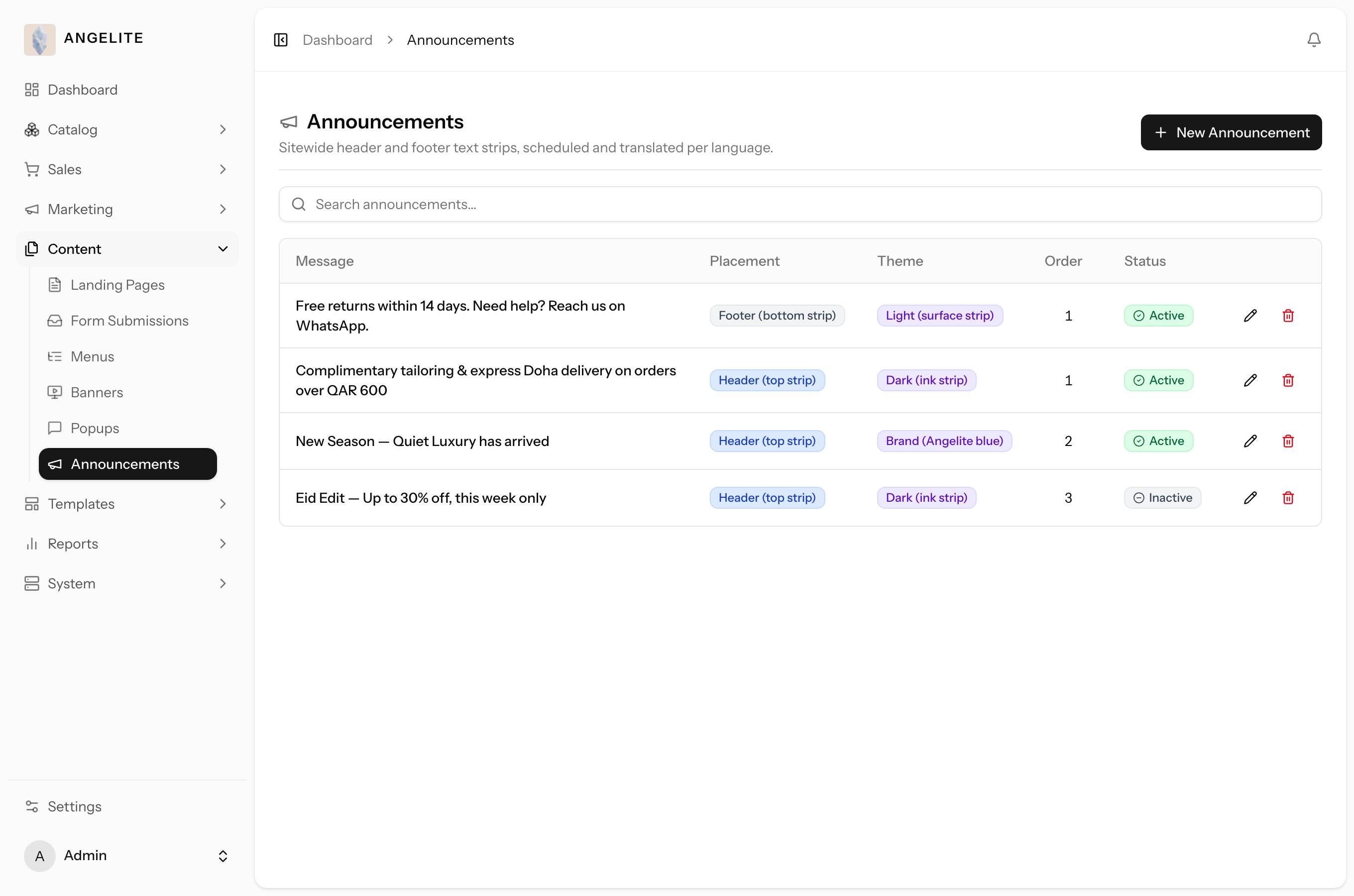
Slim text strips at the very top (header) or bottom (footer) of every page, perfect for a short
message like free shipping or a sale. Each strip can highlight a key phrase in gold, carry an optional link
button, and pick from a few ready themes, so the message rides along on every page without eating into
product space.
In practice
Imagine you want every shopper to know that orders over 500 riyals ship free across Qatar, shown as a slim line at the very top of the store in both English and Arabic, with the "free" part standing out.
How Angelite handles it: open Content → Announcements, click Add announcement, and write the message in each language, choosing the word "free" as the phrase to highlight in gold. Pick the header placement so it sits at the top of every page, choose a theme that matches your look, and decide whether visitors can dismiss it. Switch it on and save. If you later add a second strip in the same spot, such as a Ramadan collection line, the bar gently rotates between them every few seconds.
How to use it
Open Content → Announcements and click Add announcement (or click a row to edit).
Write the message in each language, optionally choosing a phrase to highlight, plus an optional button and link.
Pick the placement (header or footer) and a theme (dark, light or brand), and decide whether visitors can dismiss it.
Optionally set a start and end date, switch it on, and save.
Where: Content → Announcements, with create and edit dialogs on the same page.
Good to know: if several strips are live in the same spot, the bar rotates
through them automatically every few seconds, and the sort order controls which one shows first.
Brand story & voice
Admin
The problem: your boutique outgrows its launch story, but on most
platforms the words on the storefront are locked away in the code, so updating a tagline becomes a
developer request that waits in a queue while the site keeps telling last year's story.
The words that tell your brand's story across the storefront, your positioning
statement, your key selling points, and the tone your copy is written in, are editable content
rather than something locked away in the code, written out in both English and Arabic. Change them
once and the update carries through wherever that copy appears on the storefront.
In practice
Say your original launch tagline no longer fits now that you have grown from a handful of ready-to-wear abayas into a full made-to-order and ready-to-wear line, and you want the story your storefront tells to catch up, in both languages.
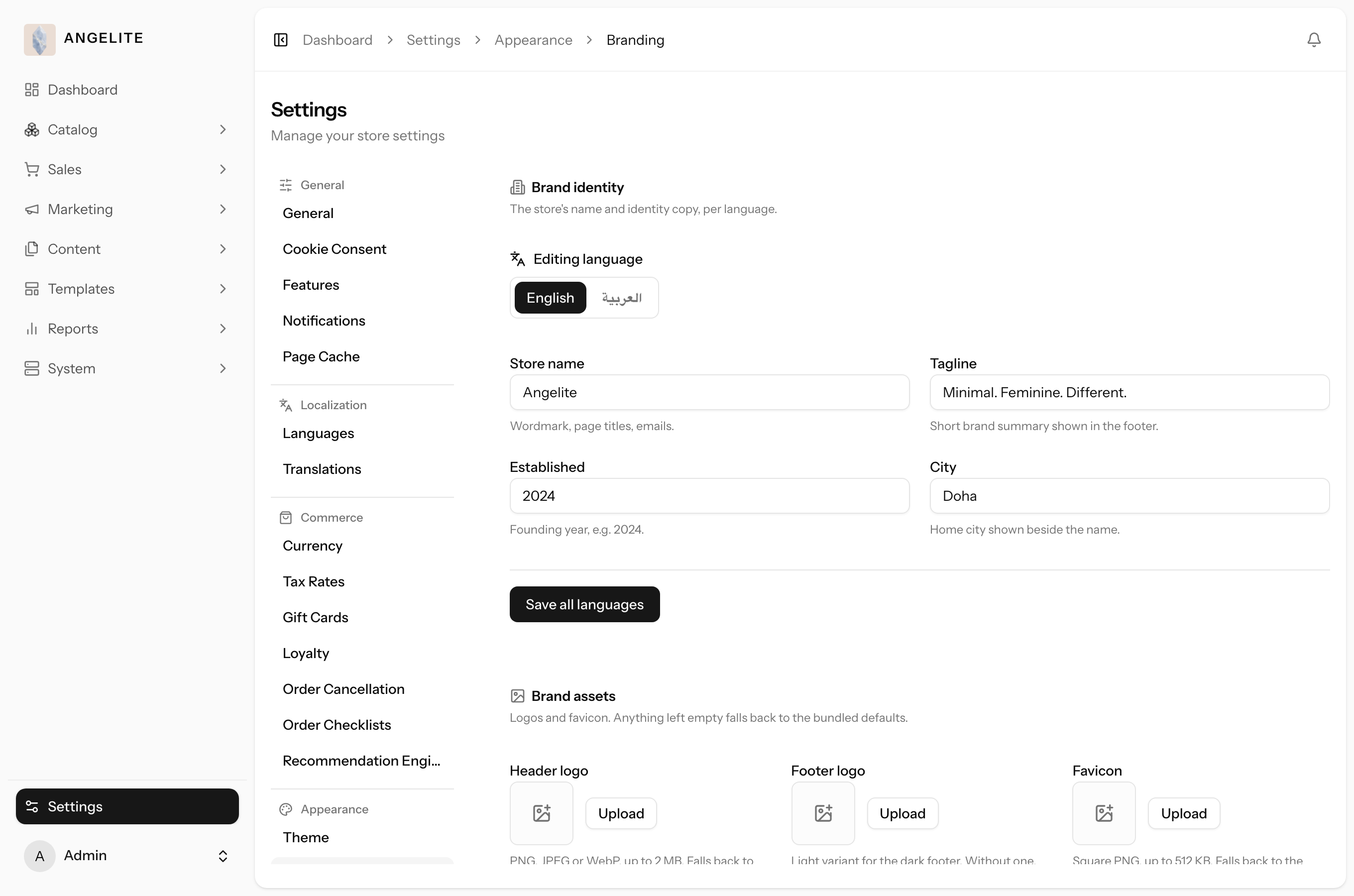
How Angelite handles it: you open Settings → Appearance → Branding, find your positioning statement and key selling points, and rewrite them to reflect the fuller collection, editing the Arabic wording alongside the English so it reads naturally rather than as a direct translation. You save, and the refreshed words appear everywhere that copy shows up on the storefront, no design changes and no developer needed.
How to use it
Open Settings → Appearance → Branding.
Edit your positioning statement, key selling points and tone-of-voice copy, in each language.
Save; the refreshed wording appears across the storefront right away.
Where: Settings → Appearance → Branding.
Related: your logo, favicon and other visual branding assets are
covered under Appearance in Chapter 14, Settings; this is the same page's brand-copy section.