Your best customers cannot walk past the shop window every day; email is how a new
collection reaches them at home, and how "did she ever get it?" stops being a mystery. This chapter
covers the drag-and-drop email builder, the automatic emails your store sends in your own voice, the
permission-based subscriber list, targeted campaigns with open-and-click results, and the delivery
log. The campaign side is an optional module (Email marketing) you switch on when you are ready; the
automatic order and account emails are always on.
The problem: a new collection deserves a polished announcement, but
nobody on your team writes code, and an email that arrives looking broken on someone's phone does
more harm than sending nothing at all.
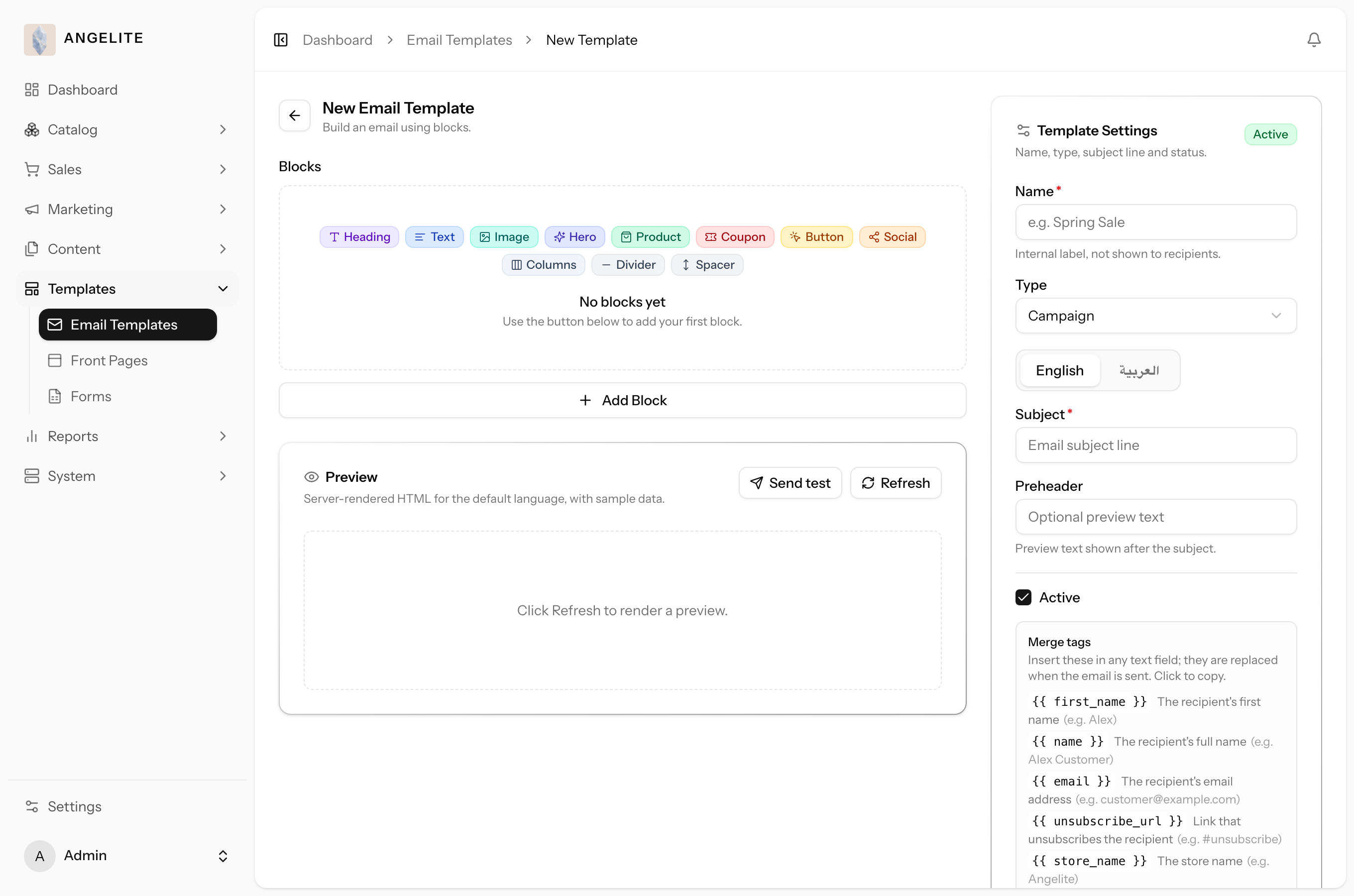
A template is the reusable design of an email. You build it from simple drag-and-drop
blocks (headings, text, buttons, images, dividers and spacers), write the subject and copy in every
language, and drop in merge tags that fill in each recipient's name automatically. A live preview shows
exactly how the email will look as you go, so any member of your team can put out an on-brand email
the same day the idea comes up.
In practice
Say a new collection of embroidered abayas has just landed and you want to announce it
with a polished email, but nobody on your team writes code and the last thing you want is a message that
looks broken on someone's phone.
How Angelite handles it: you open Marketing then Emails then Templates and click Create,
then drag a heading, an image of the new abayas, a short paragraph and a "Shop the collection" button
into place. You type the subject and copy in English, switch to Arabic to do the same, and drop in the
first-name merge tag so each reader is greeted by name. The live preview on the side shows the finished
email the whole time, so you save it knowing it is on-brand and reads well in every inbox, then reuse the
same template for the next announcement.
How to use it
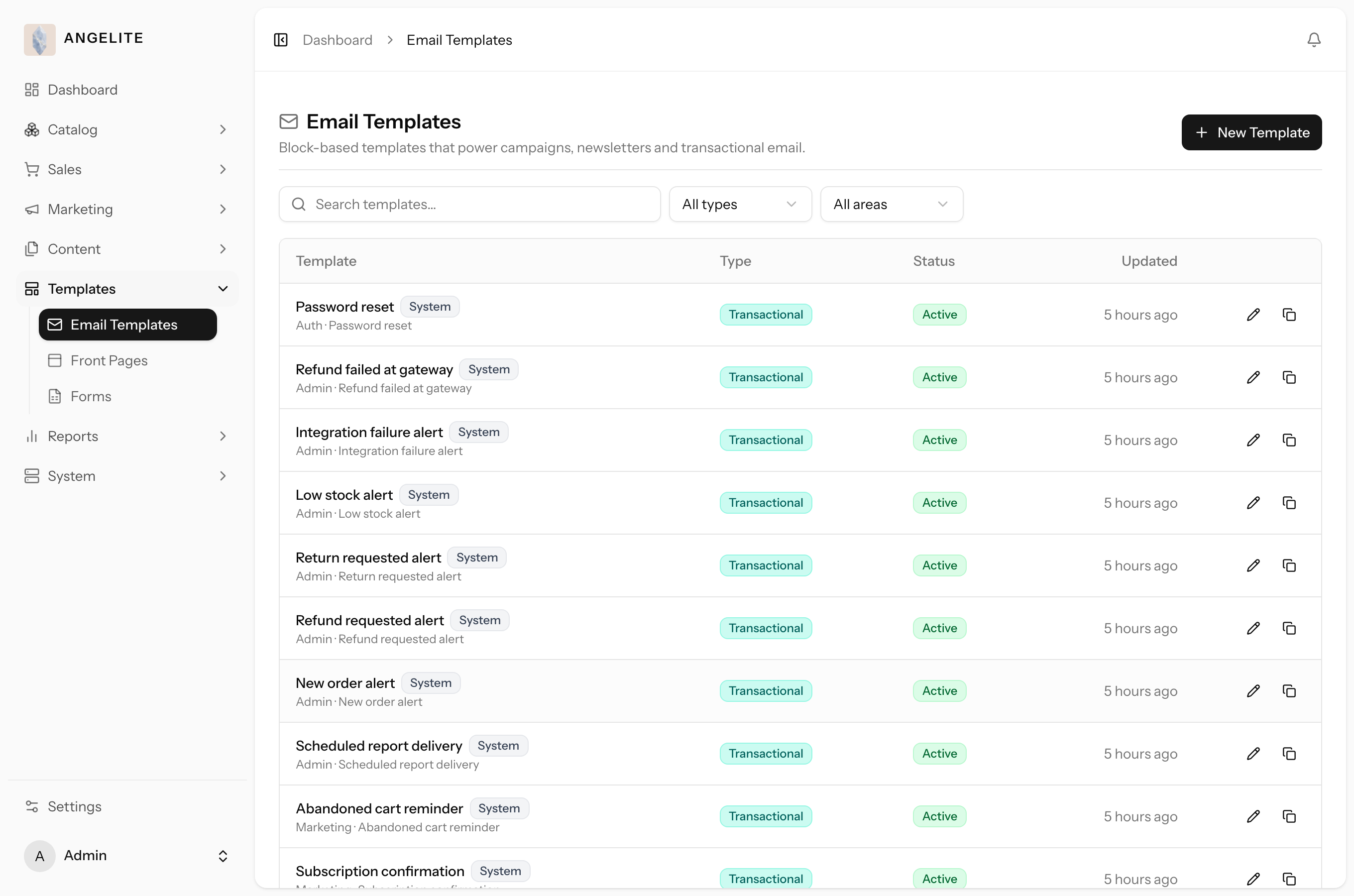
Open Templates → Email Templates to see your saved templates.
Click Create to start a new email, or click a template to edit it.
Drag blocks into place and fill in your copy; use merge tags (such as the recipient's first name) where you want personalised text.
Watch the live preview to see the finished email, and switch languages to check each translation.
Save. The template is now ready to attach to a campaign.
Where: Templates → Email Templates.Where: the template editor, with the block builder on one side and the live preview on the other.
Emails are built from blocks rather than typed out as raw code for a practical reason: blocks let
anyone on your team assemble a tidy, on-brand email that looks right on every phone and inbox without touching
any technical markup. Each block is a ready-made, mobile-safe building piece; you stack the pieces you want, fill
in the words and pictures, and the email is laid out correctly for you. Because the design is reusable, you can
save one well-made template and send it again and again for many different campaigns, just swapping the wording
and the product each time.
Block
What it adds
When to use it
Heading
A bold title line, in one of a few sizes.
To open the email or to start a new section, for example "New: Ramadan Collection".
Text
A paragraph of body copy, with light formatting like bold and links.
For the main message: describing a piece, a sale, or a story behind the fabric.
Image
A picture, which can also be made clickable to a page.
To show an abaya, a gift set, or a lifestyle shot that sells the look at a glance.
Button (call to action)
A tappable button that links somewhere, aligned left, centre or right.
To send readers to the exact next step, such as "Shop now" or "Book a fitting".
Divider
A thin line across the email.
To separate two sections cleanly, for example a new arrival from a clearance note.
Spacer
A controllable gap of empty space.
To give the layout room to breathe so it never looks cramped.
Columns
A row of two or three side-by-side content cards, each with its own image, heading, text and
button. On a phone the columns automatically stack into one, so the email still reads cleanly.
To showcase a few pieces side by side, such as three abayas from a new collection, without
building three separate image blocks by hand.
Tip: use Duplicate to copy a template you like and tweak it for
a new send. The copy starts switched off and is never tied to anything live, so you can edit it freely
before you use it.
Good to know: the automatic emails your store already sends, order
confirmations, shipping updates, gift card codes and the like, are built from these same blocks and
edited on this same screen; the next card covers them.
Transactional emails
Admin
The problem: order confirmations and shipping updates are the
most-read messages a store ever sends, yet on most platforms they are frozen, developer-owned text
that does not sound like your boutique at all.
Every automatic email your store sends (the order confirmation, shipping update, refund
notice, password reset, welcome note and about twenty more) comes from a branded template you edit
yourself, in the same block editor as your campaigns, in each language. Merge tags fill in the
customer's name, order number and totals automatically, and each email goes out in the customer's own
language. The built-in base templates can be reworded but never deleted, so there is always a safe
version ready to send.
In practice
Say a customer in Doha orders a made-to-order abaya and the confirmation that lands
in her inbox reads like a generic system receipt, nothing like the warm voice she heard from you in the
fitting room, and your Arabic-speaking customers deserve better than a translated afterthought.
How Angelite handles it: you open Templates → Email Templates and open the
order-confirmation template. You rewrite the wording in your own voice, English and Arabic side by side,
keeping the merge tags in place so her name, order number and totals still fill themselves in. You check
the preview, press Send test to read it in your own inbox, and save. The very next order confirmation
goes out sounding like your boutique, in each customer's own language, and the timing of the sends never
changes.
How to use it
Open Templates → Email Templates and open the transactional template you want to change.
Edit the blocks and wording in each language, keeping the merge tags where the customer's details should appear.
Check the preview and use Send test to email yourself a copy.
Save. The next automatic send uses your wording; when the emails go out never changes.
Where: Templates → Email Templates; transactional templates are edited in the same place as campaign templates.
Good to know: these emails always send, whether or not the Email Marketing
module is switched on. You are only ever changing how they look and read, never whether or when they are
sent, and because a base template cannot be deleted, an edit can never leave a customer without her
confirmation.
Subscribers
AdminOptional · Email Marketing
The problem: a list gathered carelessly is the fastest route to the
spam folder; a few complaints from people who never really asked to hear from you, and even your loyal
customers stop seeing your emails.
Your newsletter list: the people who have agreed to hear from you. It fills itself from the
storefront signup form, and nobody joins until they click a confirmation link in an email first, which
keeps your list clean and your sending trusted. You can also add people by hand when you already have
their consent.
In practice
Imagine a shopper in Doha loves a made-to-order kaftan in your window and signs up at the bottom of
your homepage to hear about new arrivals, and separately a regular gives you her email on a paper card at a
weekend pop-up and asks to be kept in the loop.
How Angelite handles it: the online shopper receives a confirmation link by email, clicks
it, and only then joins your list, so you know the address is real and willing. For the pop-up regular, you
open Marketing then Emails then Subscribers, click Add subscriber and type her details in by hand since she
already gave you permission. From that one screen you can search the list, filter by status, and edit or
remove anyone, so your audience stays accurate.
How to use it
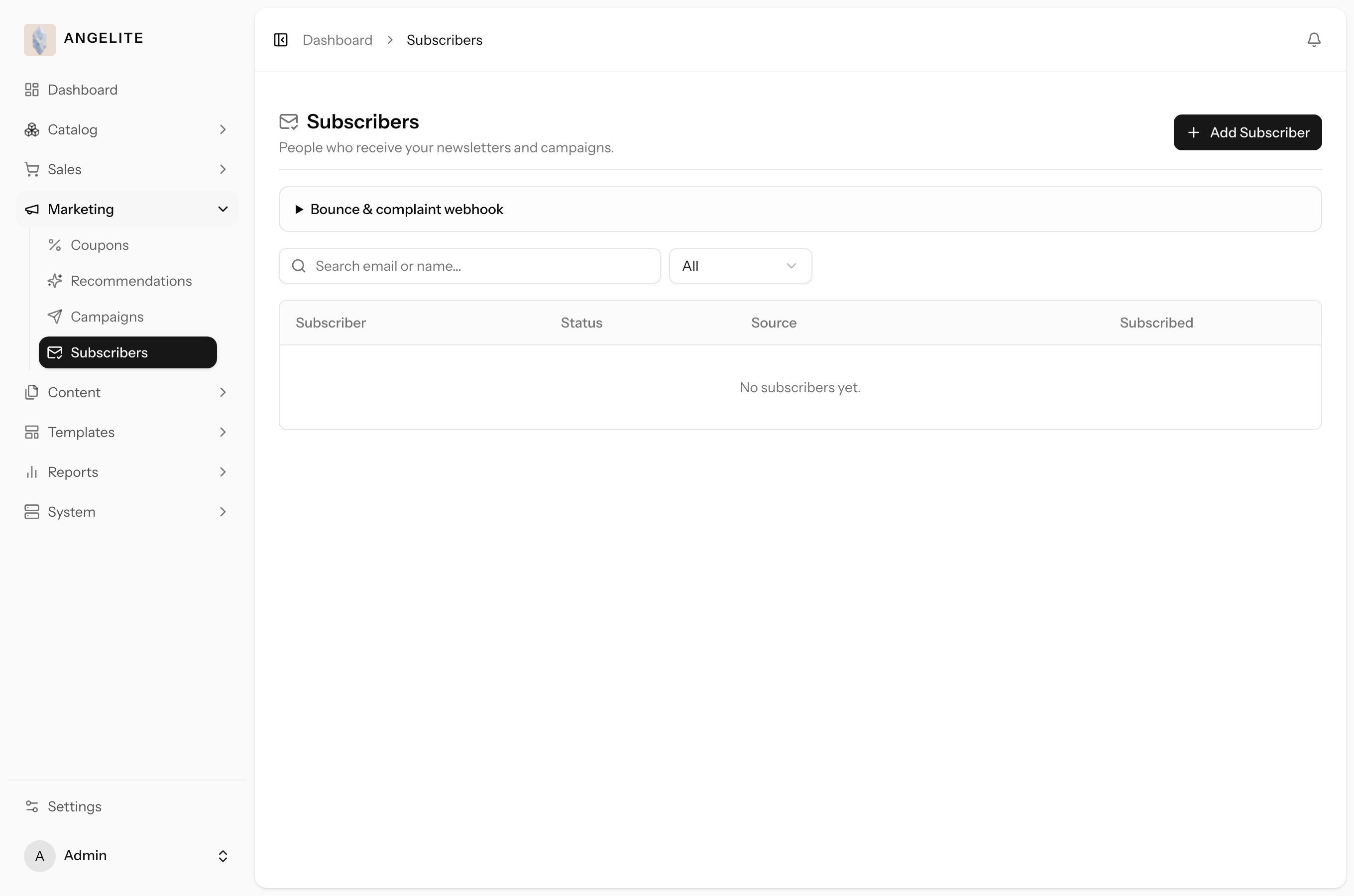
Open Marketing → Subscribers to see the list, with each person's status.
Search by name or email, or filter by status, to find anyone quickly.
Click Add subscriber to enter someone manually; they are added straight away.
Edit or remove a subscriber as needed.
Where: Marketing → Subscribers.
Good to know: only people who have confirmed (and have not unsubscribed) ever
receive a marketing email. Someone who signed up but never clicked the confirmation link stays on the list
but is not emailed, so you only ever reach a willing audience.
Campaigns
AdminOptional · Email Marketing
The problem: sending the same offer to everyone wastes your best news
on people who will never buy and teaches the rest to ignore you; and with a few thousand addresses on
the list, the fear of a duplicate send is enough to make you put the whole thing off.
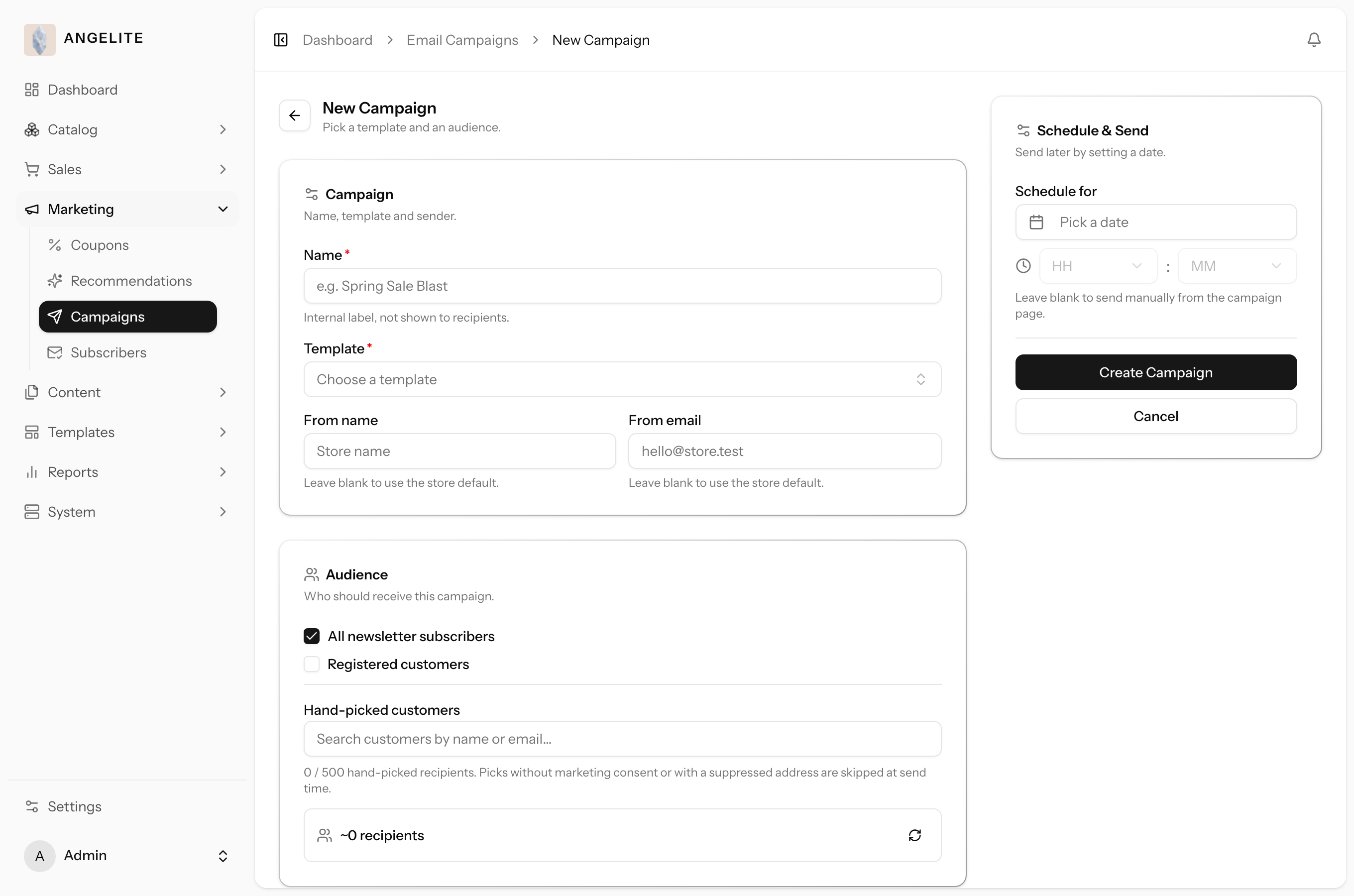
A campaign is one email send: you choose a template and pick who should receive it. That can
be your whole subscriber list or customer base, a handful of people you search for and add by name, or
a set built from simple rules, for example "customers who bought from the Abayas category" or "spent over
a certain amount in the last three months", and a live count shows roughly how many people match before
you send. You can optionally set a future send time. The email then goes out in steady batches so even a
very large list never slows the system down, and anyone who has unsubscribed in the meantime is skipped
automatically.
In practice
Say Ramadan is approaching and you want a gifting email to reach your best customers specifically, the ones who have bought abayas before and spent well over the past few months, rather than your entire list, and you are nervous about accidentally sending it twice to a few thousand people.
How Angelite handles it: you open Marketing then Emails then Campaigns, click Create, name
it "Ramadan Gifting", pick your gifting template, set the from-name and from-email, and build your
audience from rules: bought from Abayas, spent over a threshold in the last ninety days. The live count
updates as you adjust the rules, so you can see roughly how many people will receive it before you
commit. You schedule it for the morning instead of sending now. The email then goes out in steady
batches so the system stays fast, anyone who unsubscribes before their turn is quietly skipped, and
the safeguards make sure no one is ever emailed twice. If a handful of addresses come back
undeliverable, you click Resend to failures to retry only those.
How to use it
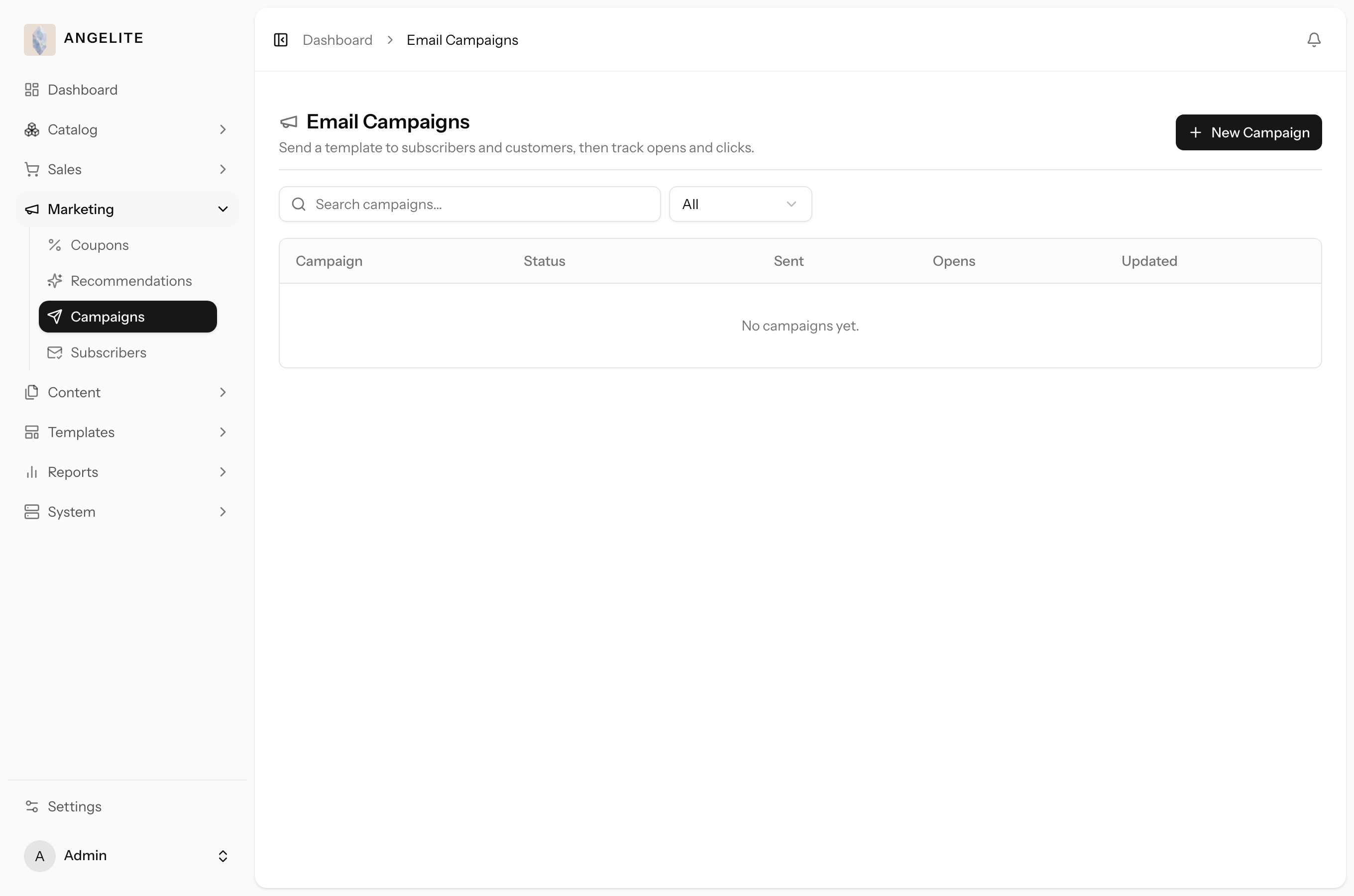
Open Marketing → Campaigns and click Create.
Give the campaign a name, choose the template, and set the from-name and from-email.
Choose the audience: everyone, specific people you search for and add by name, or a set built from
rules such as recent orders, amount spent, or products bought, watching the live count as you refine
it. Then send now or schedule it for later.
On the campaign page, watch progress and read the results: how many were sent, opened and clicked.
If some addresses failed, use Resend to failures to retry just those; you can also Cancel a send in progress.
Where: Marketing → Campaigns.Where: the campaign editor, where you pick the template, audience and schedule.
Good to know: sending is safe to repeat. A double click, a scheduled send, or a
retry of a half-finished campaign will never send the same person twice.
Open & click tracking
AdminOptional · Email Marketing
The problem: without numbers, every send feels like it went fine; you
cannot tell the subject line that pulled customers back into the store from the one everybody scrolled
past, so the next campaign is planned on guesswork.
Every campaign measures how it performed. Opens and clicks are tracked on your own platform
(nothing is handed to an outside analytics service), and the totals roll up into each campaign's stats so
you can see the open rate, the click rate, and how many people engaged.
In practice
A customer opens your new-arrivals email, taps the "Shop the collection" button and goes
on to browse your abayas, and a few days later you want to know whether that email was actually worth sending
or whether the next one needs a stronger subject line.
How Angelite handles it: tracking is already built in, so there is nothing to switch on. You
open that campaign's page under Marketing then Emails then Campaigns and read its results: how many people
received it, how many opened it, how many clicked through, and the open and click rates. Because all of this
is measured on your own platform and not sent to any outside service, your customers' data stays with you, and
you check back over the following days as more opens and clicks keep arriving.
How to use it
Send or schedule a campaign as usual; tracking is built in, with nothing extra to set up.
Open the campaign's page to read its metrics: recipients, sent, opened, clicked, and the open and click rates.
Check back over the next days, since opens and clicks keep arriving after the send finishes.
Where: campaign metrics, on the campaign's page under Marketing → Campaigns.
Good to know: open numbers can read low because some inboxes block the images
used to detect an open, so a few people will click without ever showing as having opened. This is normal for
email everywhere.
Delivery log
AdminOptional · Email Marketing
The problem: a customer says she never received her order confirmation,
and you have no way of knowing whether it was sent, went astray, or is sitting in her junk folder; all
you can offer is an apology and a shrug.
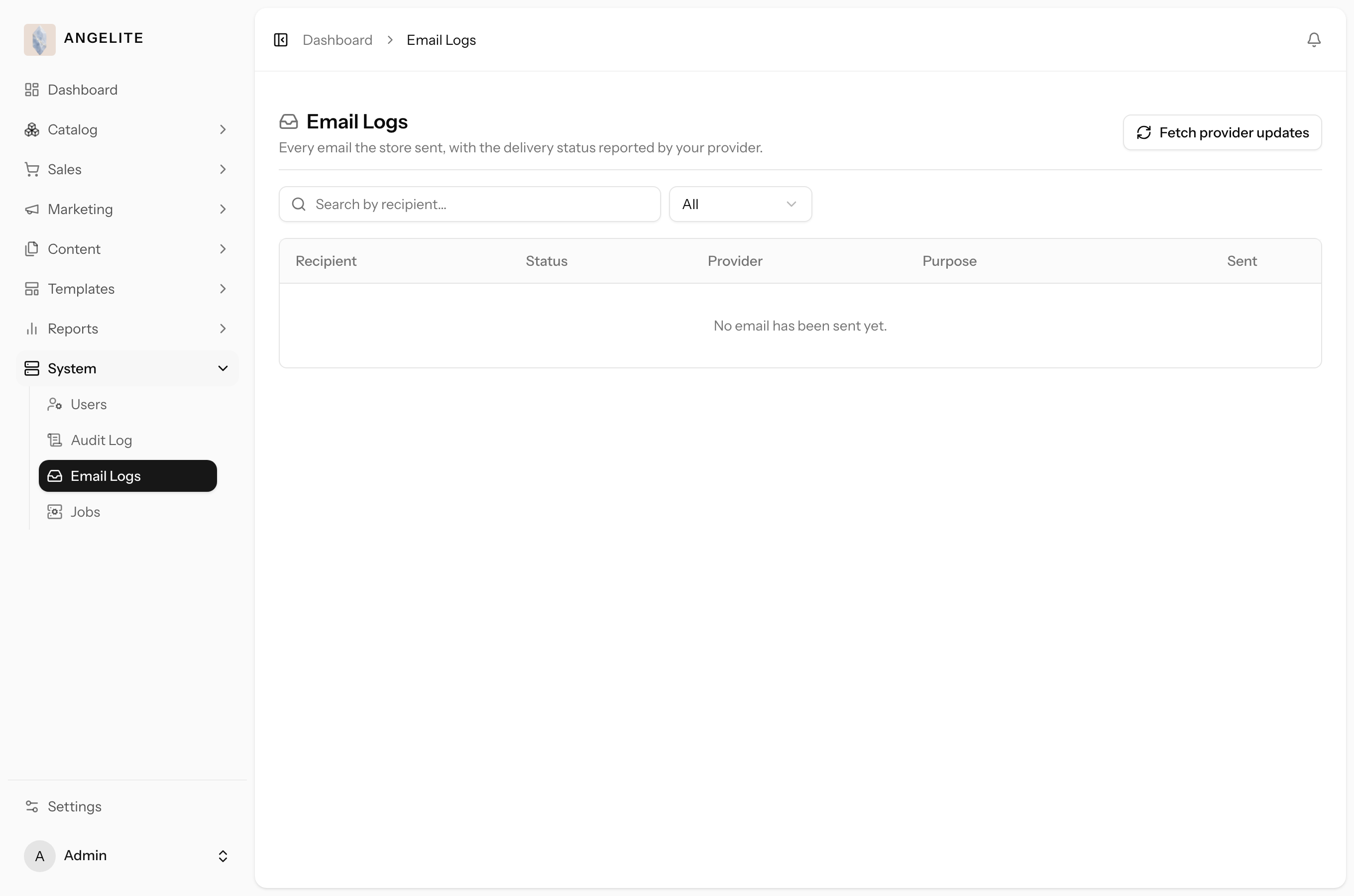
One place to check on every email your store has sent, not just campaigns but order
confirmations, password resets and every other automatic email too. Search by recipient and see
whether each one was delivered, came back undeliverable, or was filed as junk, with a timeline of
what happened to it along the way.
In practice
A customer messages you saying she never received her order confirmation, and you want to know whether your store actually sent it, or whether it came back undeliverable somewhere along the way, without digging through server files.
How Angelite handles it: you open Marketing then Emails then Logs and search for her email address. You see the order confirmation was sent, then came back undeliverable because her inbox was full, so you know exactly what happened and can ask her to check her storage or give you another address, rather than guessing.
How to use it
Open System → Email Logs.
Search by recipient, or filter by status or which type of email it was.
Click an entry to see its full delivery timeline.
Where: System → Email Logs.
Good to know: this covers every email the platform sends, campaigns and
the automatic order/account emails alike, so it is the first place to check whenever a customer says
"I never got the email".