Once money has changed hands, mistakes get expensive: the wrong size shipped, a
refund sent back the wrong way, an invoice that does not add up. This chapter is about running
orders calmly after checkout: they confirm themselves, you adjust them safely when plans change,
the paperwork writes itself, and customers answer their own questions instead of messaging you.
The problem: an order placed at midnight should not wait for you
to wake up and press a button before it counts, and a card order whose payment never actually went
through should not send your team off packing something nobody paid for.
An order confirms itself the moment it becomes a real commitment, with no button
to press: when the payment succeeds, or when the order is placed with a trusted offline method
such as Cash on Delivery or Bank Transfer. Nothing real waits on your sign-off, and nothing
unpaid slips through as real. From there, you drive every step that follows.
In practice
Say a customer in Doha buys a ready-to-wear black abaya late at night and pays by card. You are asleep, but the sale should not wait until morning to count as real.
How Angelite handles it: the moment the card payment clears, the order flips itself to Confirmed and lands in Sales → Orders ready to pack. You did not press anything. The next morning you simply open the order and begin Processing. Had the same customer chosen Cash on Delivery instead, it would still show Confirmed straight away, just marked unpaid until the cash arrives.
How to use it
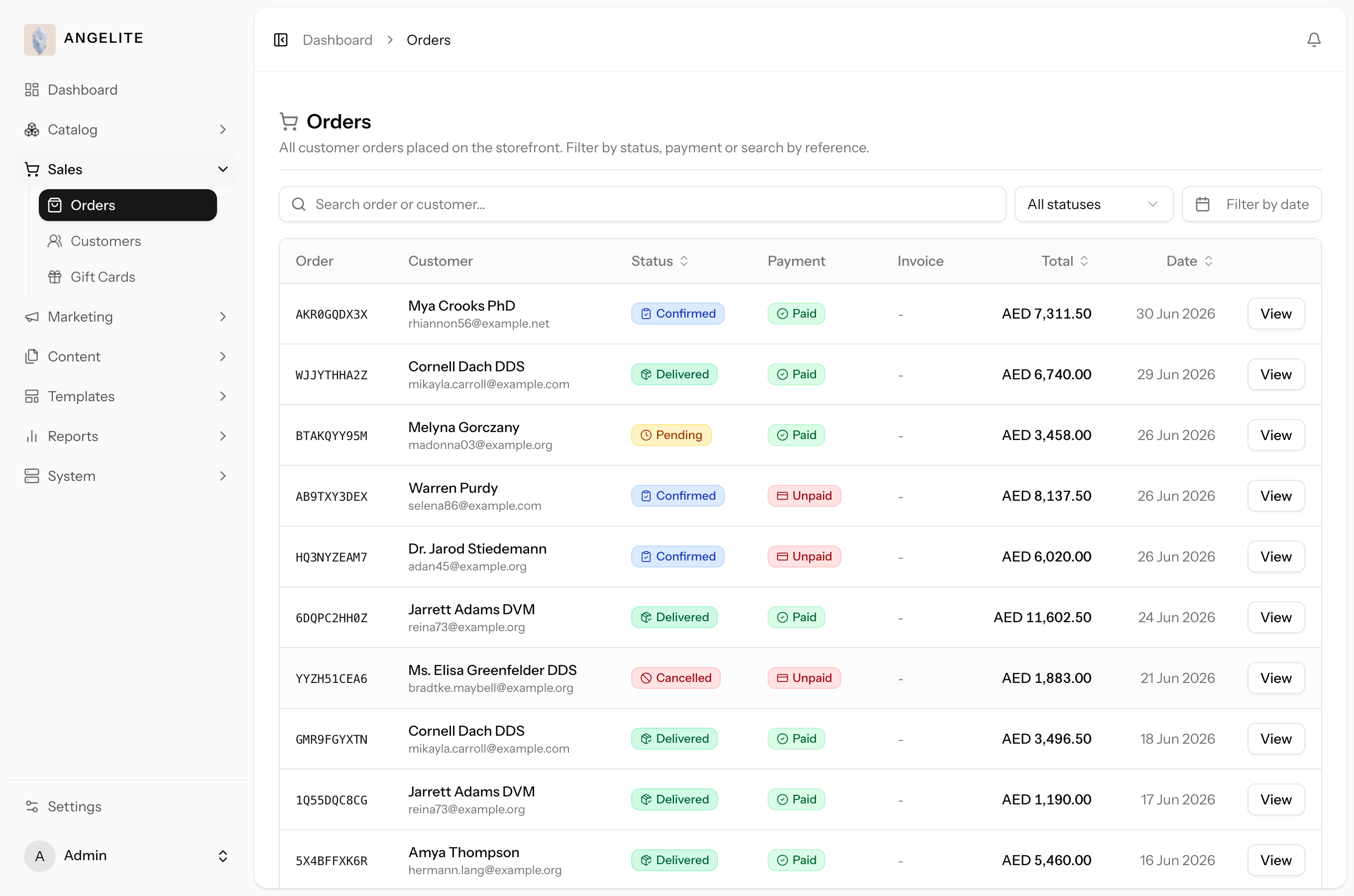
Open Sales → Orders to see new orders as they arrive.
A paid order, or one placed with Cash on Delivery or Bank Transfer, already shows as Confirmed.
An order whose card payment did not go through stays Pending; it is automatically tidied up if it is never completed.
Where: Sales → Orders, with each order's status shown in the list.
Good to know: a Cash on Delivery order is Confirmed straight away
but still shows as unpaid until you mark the cash or transfer as received.
Order management
Admin
The problem: two staff members touch the same order in one
afternoon, something goes wrong, and "who did what, and when?" turns into a guessing game, with a
customer waiting on the answer.
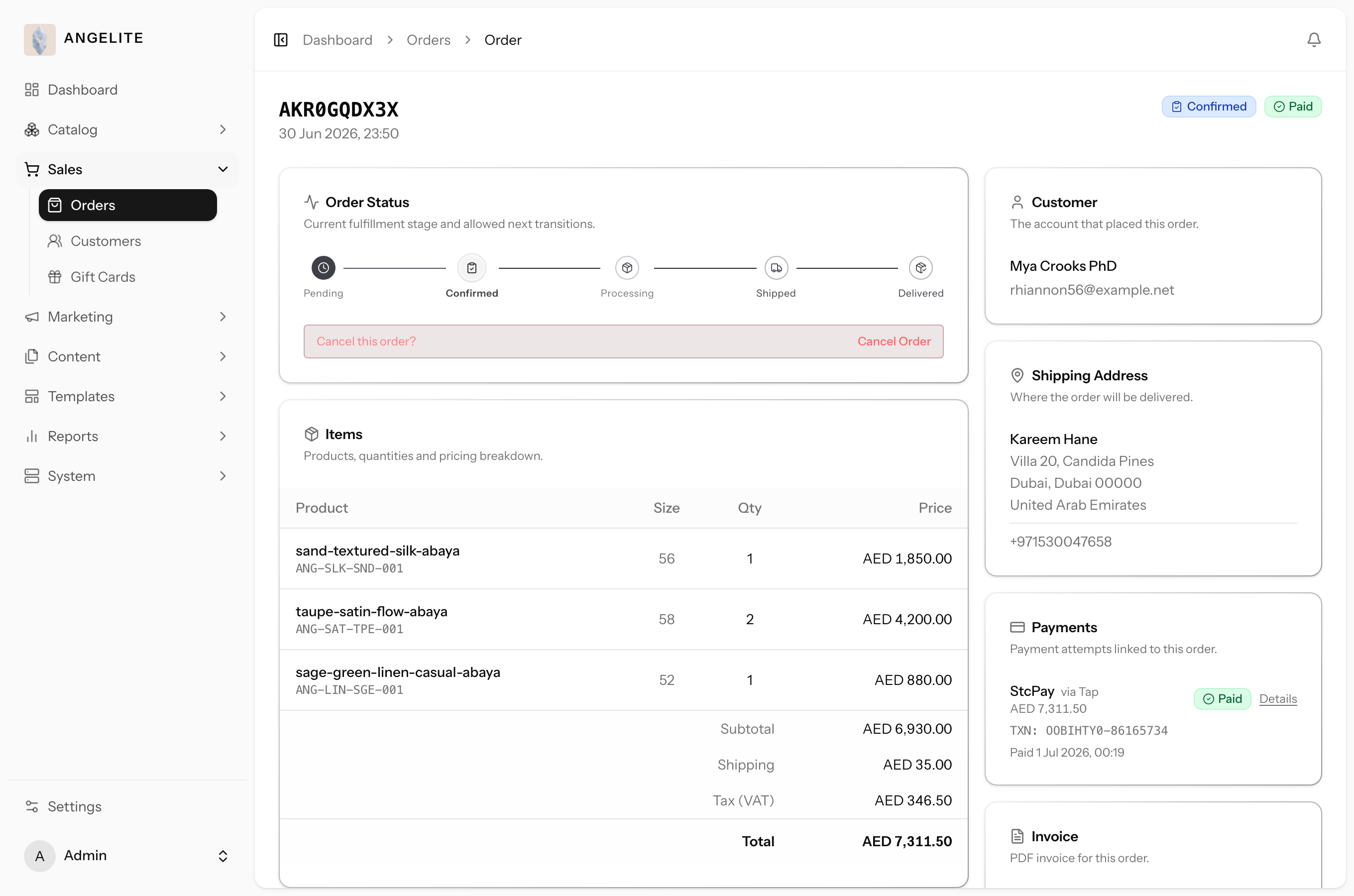
The control centre for a single order. View its full details, move it through the
shipping steps it passes on the way to the customer (Processing, Shipped, Delivered and so on),
and add internal notes. Every change is recorded with who made it, so if a customer ever disputes
a step, you can point to the exact person and moment instead of guessing.
In practice
Imagine a customer orders an Eid-gifting abaya set and you have steamed it, boxed it, and handed it to the courier. Two staff members touch the order that day and you want to know exactly who did what.
How Angelite handles it: you open the order from Sales → Orders and see the items, address, payment and history on one screen. You move it from Processing to Shipped using the status control, which only offers the steps that make sense next, and you type in the carrier name and tracking number so the customer can follow the parcel. A colleague later adds a note that the gift box was included. The timeline stamps each action with the staff member's name, so nothing is a mystery later.
How to use it
Open Sales → Orders and click an order to open its detail page.
Review the items, addresses, payments and history all on one screen.
Use the status control to advance the order to its next step; only the steps that make sense are offered.
When you mark an order as Shipped, add the carrier and tracking number so the customer can follow it.
Add a note at any time to leave a record for your team; it joins the order's timeline.
Where: Sales → Orders, the filterable list of every order.Where: the order detail page, with status controls, the timeline and the payments panel.
Tip: the timeline shows status changes, notes and edits side by
side, each stamped with the staff member who made it, so nothing about an order is ever a mystery.
Edit order contents
Admin
The problem: an hour after ordering, a customer phones: she needs
size 56, not 52, and could you add the matching hijab? Cancelling and re-placing the whole order
means she pays twice or waits on a refund, over a change that should take a minute.
Fix or adjust what is on an order while it is still unpaid and not yet shipped. Swap
a line for a different size or colour, change a quantity or a price, add or remove an add-on
service, and add or remove whole products. The totals recalculate for you, the change is written
to the order's history, and the customer never has to pay twice.
In practice
A customer places a Bank Transfer order for a made-to-order abaya in size 52, then phones to say she actually needs size 56 and wants to add a matching hijab. The transfer has not arrived yet.
How Angelite handles it: because the order is still unpaid and unshipped, you open it in Sales → Orders, swap the abaya line to the size 56 variant, and add the hijab as a new product line. The subtotal, tax and total all recompute on the spot, so the amount she transfers is correct the first time, and the change is written to the order history for your records.
How to use it
Open the order in Sales → Orders (it must be unpaid and not yet shipped).
Edit the lines: pick a different variant, change the quantity or price, or toggle add-on services.
Add a new product line or remove one you no longer need.
Save. The subtotal, tax and total all recompute automatically.
Where: the items section of the order detail page.
Good to know: once any money has been taken, the order locks for
editing so there is never a charge or refund to reconcile by hand.
Edit order details
Admin
The problem: "actually, could you send it to my sister instead?"
Or a discount you promised on the phone. Adjust one figure by hand and the tax, the total and the
invoice quietly stop agreeing with each other, and accounting inherits the mess.
In the same unpaid, pre-shipment window, adjust the order-level details: the
shipping address, the shipping method and its cost, and an order-level discount. Because changing
the destination can change the tax, the totals are recalculated for you, so nothing ever falls
out of sync.
In practice
Say a customer ordered a set (abaya and hijab) to be sent to her home in Doha, but then asks you to deliver it to her sister in Al Khor instead, and she mentions a loyal-customer discount you promised her.
How Angelite handles it: while the order is still unpaid and unshipped, you open it and click Edit details. You change the shipping address to the sister's, pick the right shipping method for that destination, and apply the discount you agreed (capped at the value of the goods). Because a new destination can change the tax, the totals recompute automatically, and the change is logged to the timeline so the whole team sees why the address moved.
How to use it
Open the order and click Edit details.
Update the shipping address, choose a different shipping method, or set its cost.
Apply an order-level discount if you want to (capped at the value of the goods).
Save. The order's totals and tax recompute, and the change is logged to the timeline.
Where: the Edit details dialog on the order detail page.
Order status checklists
Admin
The problem: the same packing step gets forgotten every few
weeks; a new packer skips the care-instructions card and nobody notices until a customer does.
Meanwhile your Arabic-speaking customers receive order updates written only in English.
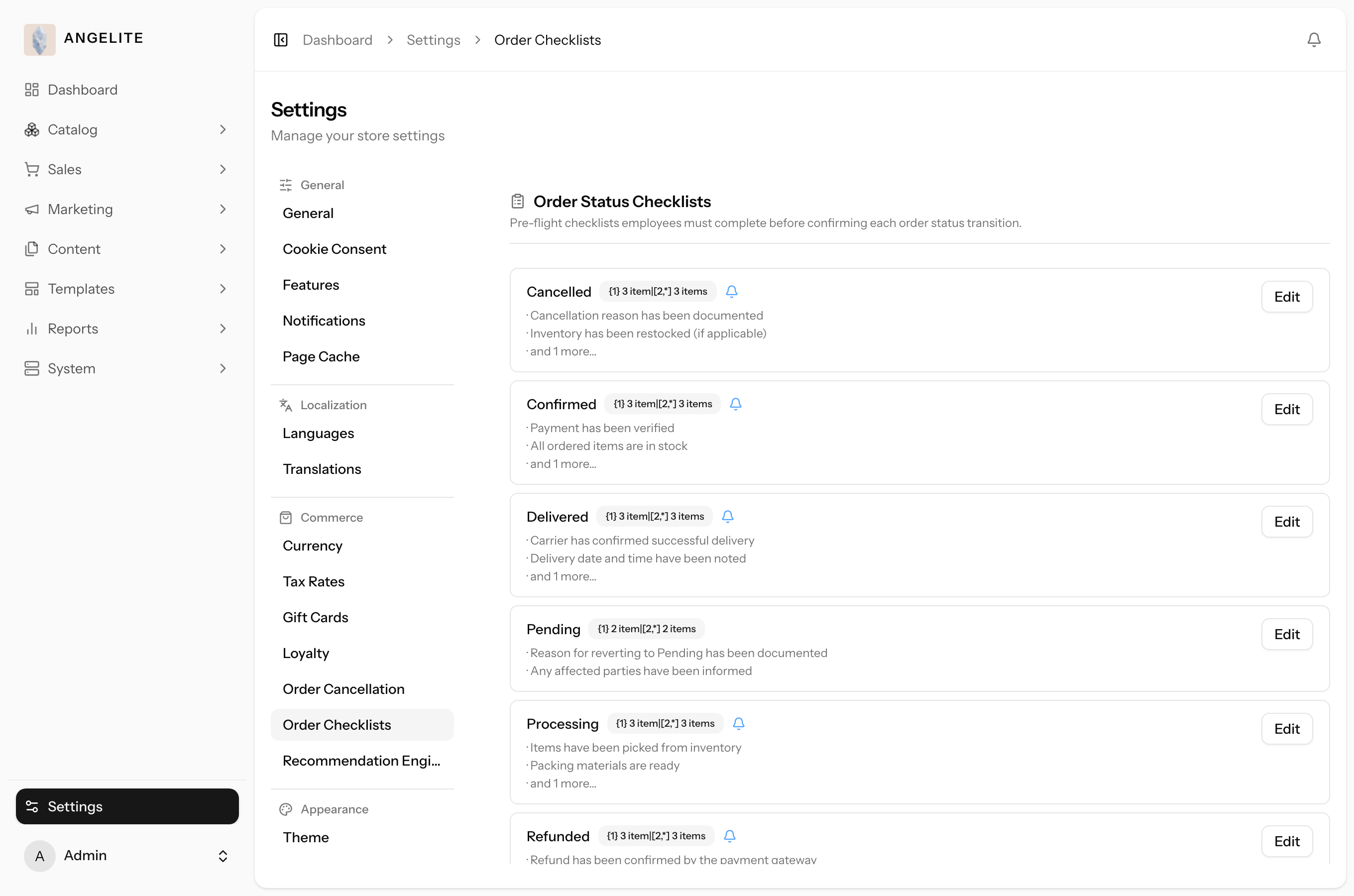
Set up a short checklist for each shipping step an order passes through (Confirmed,
Processing, Shipped and so on), written in both English and Arabic, so your team always remembers
the steps that matter at that point (for example, "print the packing slip" before shipping) no
matter which language they work in. Each step can also carry its own short message to the
customer, sent automatically in whichever language that customer uses, so shoppers are kept
informed in words they understand.
In practice
Imagine your abayas always need the same care before they leave: a final steam-press, a garment bag, a care-instructions card, and an insured label. A new packer keeps forgetting the care-instructions card, and you also want your Arabic-speaking customers to get an update they can read comfortably.
How Angelite handles it: you open Settings → Order status checklists, pick the shipping step, and add those four items in both English and Arabic, plus a short customer message such as "Your order has been carefully packed and is on its way", also written in Arabic. Your team always sees the checklist in whichever language they work in, so the new packer sees "include care-instructions card" right on the order and nothing slips through. When an order reaches that step, an Arabic-speaking customer gets the update in Arabic and an English-speaking one gets it in English, automatically, with no extra work from your team.
How to use it
Open Settings → Order status checklists.
Pick the shipping step it applies to, then write the checklist items for your team and the message for the customer, each in English and Arabic.
Save. Your team sees the checklist in their own admin language, and the customer message is sent in the customer's own language when an order reaches that step.
Where: Settings → Order status checklists.
Invoices & credit notes
Admin
The problem: a business customer asks for a proper invoice for
her company's books and you have nothing better than a hand-made document. At tax time, invoices
with missing or duplicated numbers turn a routine review into a scramble.
Generate a tidy invoice PDF for any order and download it, and a matching credit-note
PDF for every refund. Both are numbered in one unbroken sequence with no gaps, which is exactly
what a tax inspector wants to see, so your paperwork stays in order and audit-ready all year
round.
In practice
A business customer buys a batch of ready-to-wear abayas as Eid gifting for her staff and asks for a proper invoice for her company's accounts. Later she returns two pieces and needs paperwork for the refund too.
How Angelite handles it: you open the order and click Generate invoice; it prepares in the background, becomes available to download as a clean PDF, and a copy is emailed to her automatically. When you later refund the two abayas, a matching credit note is produced on its own, each numbered in one unbroken sequence with no gaps, so her accountant, and yours, can match every document to every payment without chasing anything missing.
How to use it
Open the order and click Generate invoice; it prepares in the background and becomes available to download.
Download the invoice PDF whenever you need it; a copy is also emailed to the customer.
When you issue a refund, a credit note is created for it automatically, with its own number in the sequence.
Where: the invoice section of the order detail page.
Good to know: invoice and credit-note numbers run in an unbroken
sequence each year, which keeps you compliant with tax-document rules.
Refunds
Admin
The problem: an exchange has gone wrong and the customer is on
WhatsApp asking for her money back. She paid by card; yesterday's return was cash on delivery;
last week's customer wanted the value kept as store credit. Each one has to go back a different
way, and sending money back the wrong way, or twice, is money gone.
Return all or part of an order's money. Choose where it goes (back to the original
card or payment provider, onto the customer's store credit, or marked as refunded by hand for
offline and Cash on Delivery orders), and optionally put the goods back into stock. The order's
refund status follows the money you actually returned, so nothing needs tracking on the side.
In practice
A customer returns a pearl-trimmed cream kaftan that did not suit her, paid for originally on her card. The piece is in perfect condition and you want it back on the shelf, with her money returned cleanly.
How Angelite handles it: you open the order, register the refund using the status control to unlock the Refund button, then open Refund in the payments panel. You enter the full amount, pick "back to the original payment" so it returns to her card, and tick restock so the kaftan goes back into stock. You confirm, and she receives a refund confirmation. The order's refund status updates to Refunded to match exactly what you returned. For a Cash on Delivery order you would instead choose "mark refunded by hand" or send it to her store credit.
How to use it
Open the order and register the refund using the status control to unlock the refund button.
Open the Refund action in the payments panel and enter the amount (full or partial).
Pick the destination: back to the original payment, to store credit, or mark refunded by hand for offline orders.
Choose whether to restock the returned goods, then confirm. The customer receives a confirmation.
Where: the payments panel on the order detail page.
Good to know: a full refund marks the order Refunded, while a
partial one leaves it part-refunded; the status always reflects what was actually returned.
Manual / draft orders
Admin
The problem: a regular rings with a three-abaya trousseau order
while you are on the shop floor. Scribbled on paper, that sale never reaches your stock counts,
your reports or her customer history; it lives in a notebook until someone forgets it.
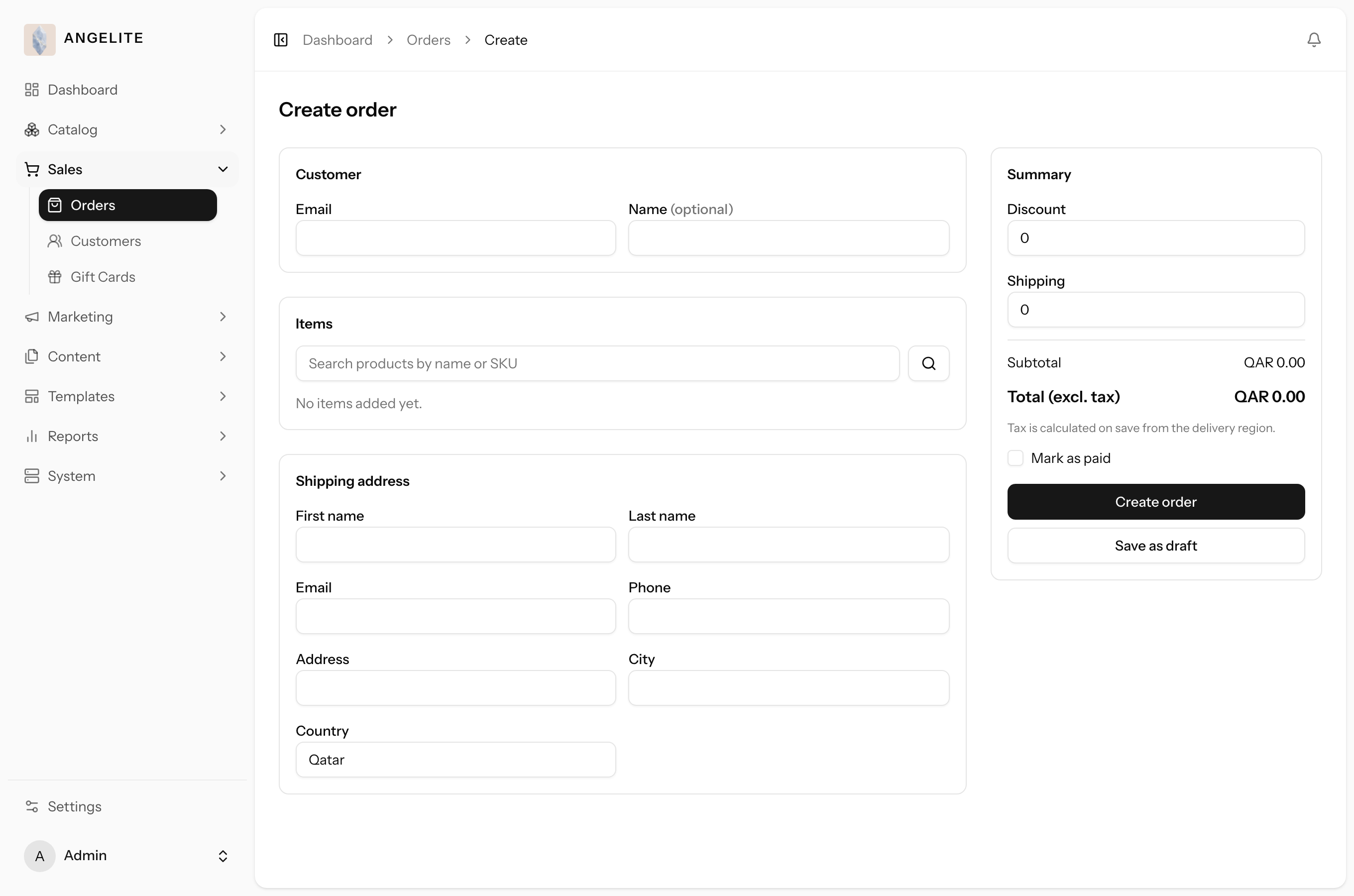
Create an order yourself on a customer's behalf, ideal for phone orders or business
customers. Add the line items and address, apply a manual discount and shipping, and optionally
mark it paid. A new caller gets a simple account created from just a name and phone or email, so
the sale still lands in one customer history. Finalise it straight away, or park it as a Draft to
finish later.
In practice
Say a regular customer calls to order three made-to-order wedding-season abayas with custom sleeve lengths for a trousseau order, paying by bank transfer she has already sent, deposit included. She is on the phone now and you want to capture the order before she rings off.
How Angelite handles it: you open Sales → Orders and click Create order. You enter her email, add the three abayas, set her shipping address, apply the price you agreed and the shipping cost, and mark it paid since the transfer landed. You finalise the order, which emails her a confirmation. If she were still deciding on the sleeve length, you could instead save it as a Draft, which reserves no stock and takes no payment, and finish it once she confirms.
How to use it
Open Sales → Orders and click Create order.
Enter the customer's email, add the products, and set the shipping address.
Apply a manual discount and shipping cost if needed, and mark it paid if payment was already taken.
Finalise the order, or save it as a Draft to come back to. A finalised order emails the customer.
Where: Sales → Orders → Create order.
Good to know: a Draft reserves no stock and takes no payment until
you finalise it, so you can prepare an order in advance without committing inventory.
Order payments view
Admin
The problem: a customer is convinced she was charged twice, and
"we will look into it" is not an answer that calms anyone down. You need the truth in seconds,
with a number she can check against her own bank statement.
See the full payment record behind an order: the method used, the amount, any
refunds, and the payment confirmation number from your payment provider. It is a read-only view,
so you can check exactly what was charged and when, and no one can alter a payment record while
looking it up.
In practice
A customer messages to say she sees two charges for her embroidered abaya and is worried she paid twice. You need to check the truth quickly and reassure her with confidence.
How Angelite handles it: you open her order in Sales → Orders and look at the payments panel, then click the payment to inspect its full details: the method she used, the amount, the payment confirmation number from her payment provider, and any refunds recorded against it. You can see in seconds that only one charge went through, and you reply with the exact confirmation number so she can match it on her bank statement. Nothing here can be changed by accident; the view is read-only.
How to use it
Open the order in Sales → Orders and find the payments panel.
Click a payment to inspect its full details, including any refunds recorded against it.
Where: the payments panel on the order detail page.
What the customer sees
Returns
Customer
The problem: returns arrive as late-night WhatsApp messages: the
abaya came up long, can she send it back? Details get lost in chat threads, a cash-on-delivery
return has no card for the money to quietly go back to, and every request ties up your phone
hours.
When an order is eligible, the customer can request a return from her account
instead of chasing you on the phone or WhatsApp. The request comes through to your team in one
tidy place to review and move along the return steps, and nothing is refunded until you approve
it.
In practice
A customer received a made-to-order abaya that turned out to be a touch too long despite her measurements, and she would rather not phone or email to start a return.
How Angelite handles it: she opens the order in her account area and, because it is still within the eligible window, chooses to request a return right there. The request lands with your team, who review it and move it along the return and refund steps from the order's detail page. She gets a self-service start to the process, and you keep full control over approving and refunding it.
How to use it
The customer opens the order in their account area.
On an eligible order, they choose to request a return.
The request reaches your team, who handle it through the order's return and refund steps.
Where: the customer's order detail page in their account.
Customer order history
Customer
The problem: "has it shipped yet?", "what did I pay?", "can you
resend the invoice?": half your inbox is customers asking about things they should be able to see
for themselves.
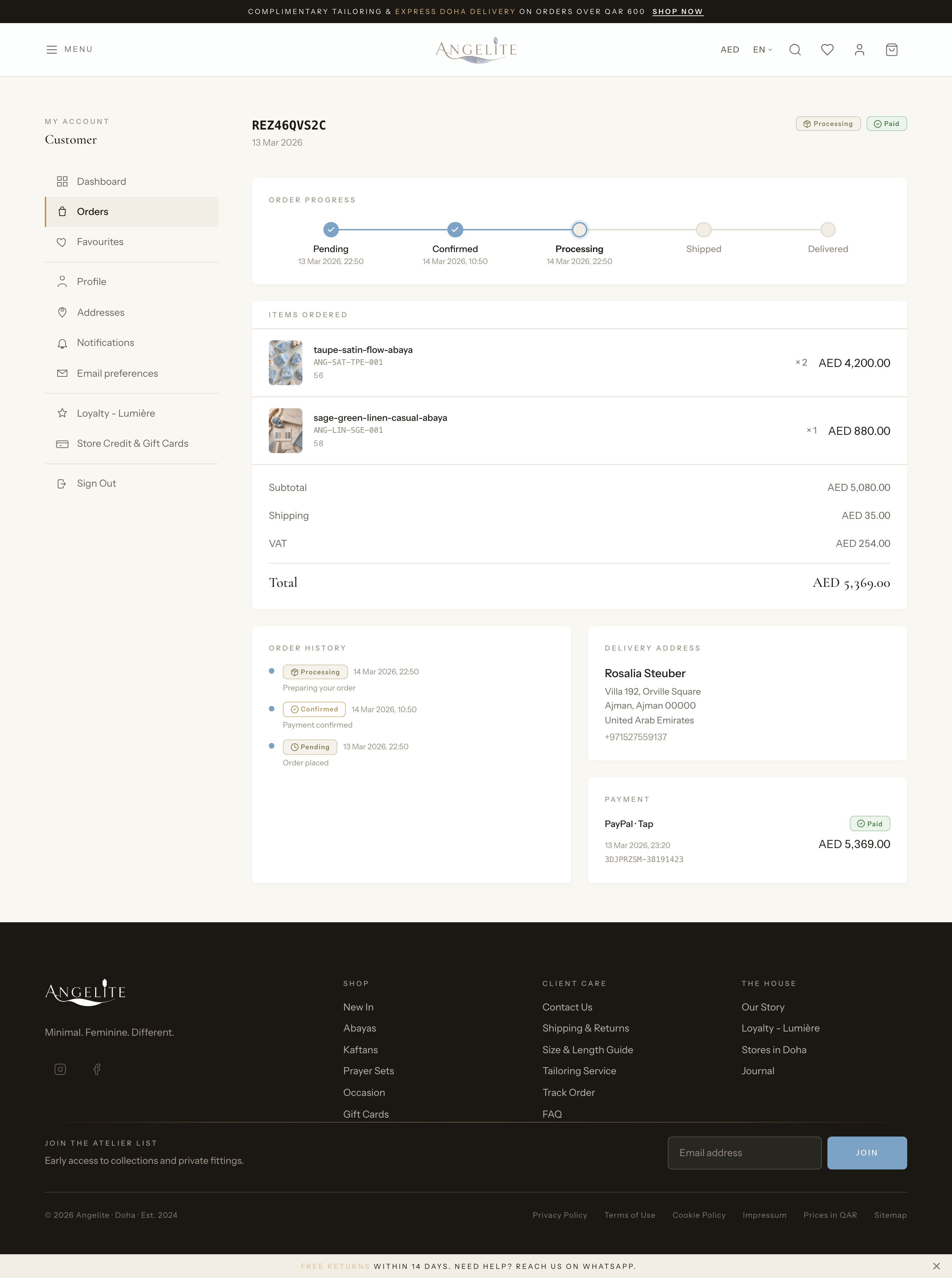
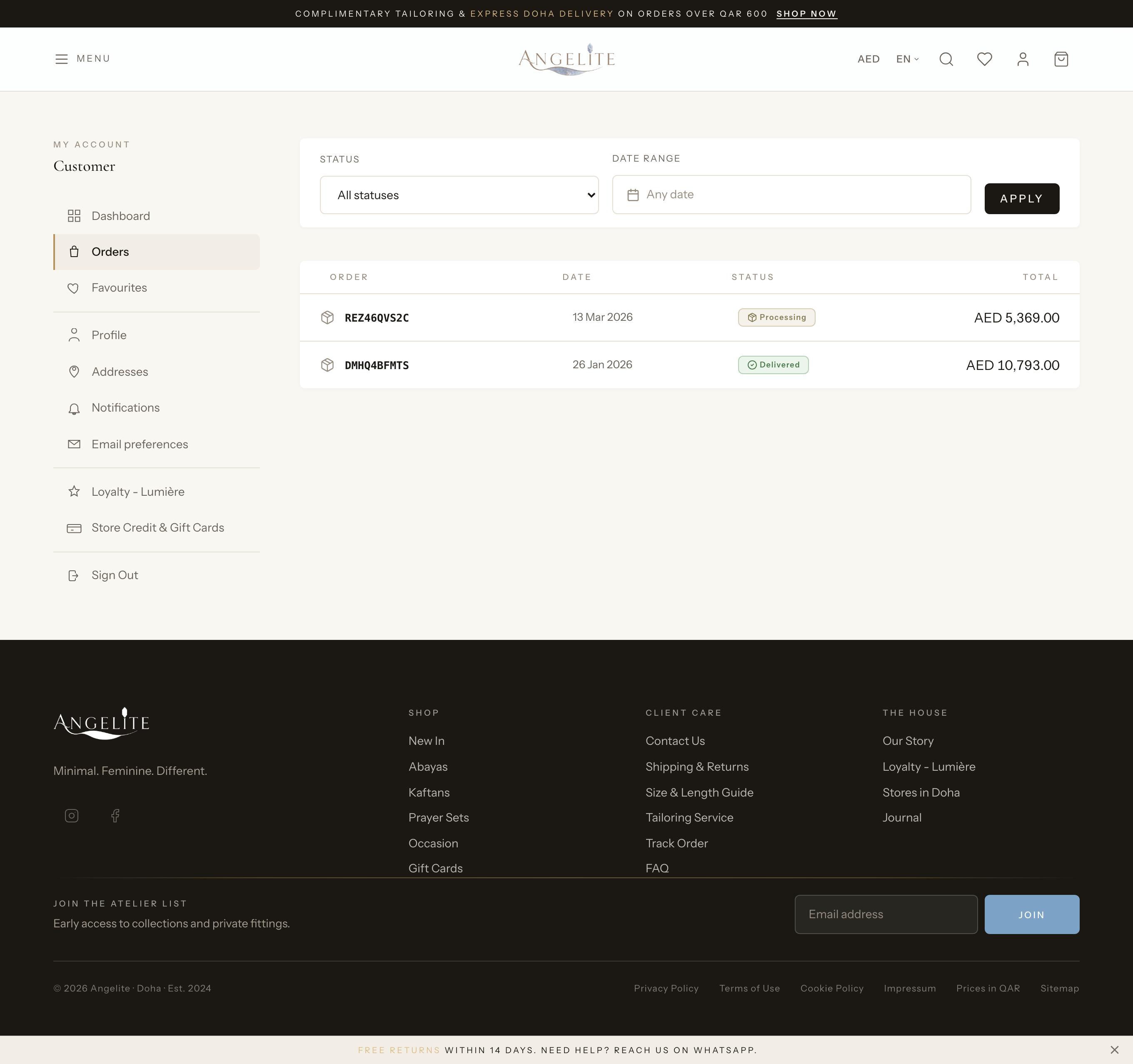
Your customers get a clear, self-service view of their own orders. They can browse
past orders and filter them, follow each order's progress through a simple stepper, see the
payments, track a shipment, cancel a pending order, and download the invoice, all without sending
you a single message.
In practice
A customer who has bought several Eid-gifting sets from you over the year wants to find an abaya she ordered last month, check it has shipped, and grab the invoice, all without messaging you.
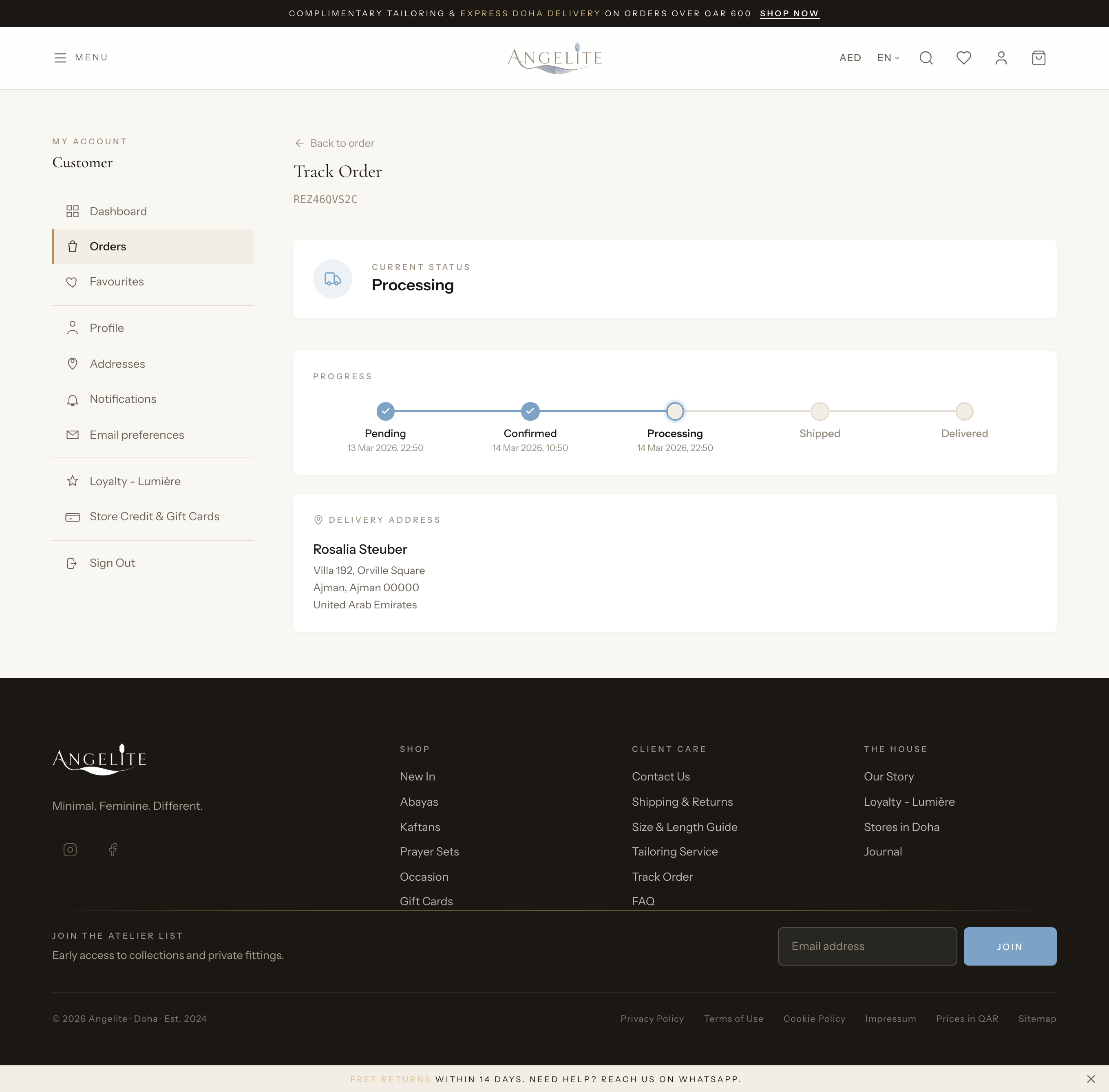
How Angelite handles it: she opens My orders in her account and filters by date to find the abaya quickly. She opens it to see the progress stepper, the items, the address and the payment record, then taps to track the shipment and follow the parcel to her door. When the invoice is ready she downloads it herself. If a different order were still pending, she could cancel it and pick a reason from the short list you manage, so you always learn why.
How to use it
The customer opens My orders in their account and filters by status or date.
They open an order to see its progress stepper, items, addresses and payment records.
They track the shipment to follow it to the door, or download the invoice when it is ready.
If an order is still pending, they can cancel it and give a reason from a short list.
Where: the customer's order history, filterable by status and date.Where: the order detail page, with the progress stepper, payments and invoice download.Where: the focused order-tracking page, showing carrier and tracking details.
Good to know: the cancellation reasons the customer can choose from
are the ones you manage under Settings, so you always learn why an order was cancelled.